Importing a key pair
Use the Certificates and Key Pairs page to import a key pair for your environment.
Use the Import Key Pair option when your use case requires cryptographic material signed or provided by an external source. This is common for scenarios such as SSL/TLS, which requires a certificate signed by a trusted Certificate Authority, or Windows passwordless authentication, which requires a key pair supplied by an Entra tenant.
|
If you only need to quickly generate a self-signed key for standard single sign-on (SSO) needs like SAML or OAuth, and your organization doesn’t require an external authority, learn more in Creating a key pair. |
Steps
-
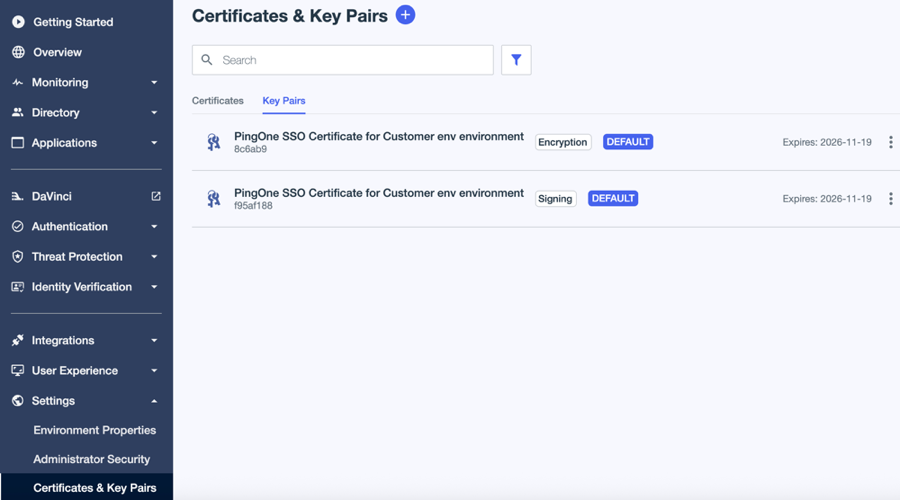
In the PingOne admin console, go to Settings > Certificates and Key Pairs.
-
On the Key Pairs tab, click the Plus icon ().
-
Select Import Key Pair.
-
Click Select a file and upload the appropriate file from your local file system.
-
In the Usage Type list, select the applicable option:
Option Description Signing - Verification
Used to create and validate digital signatures. Enables the certificate to sign tokens or data so that other systems can verify the signature to ensure authenticity and integrity.
Encryption – Decryption
Used to securely protect sensitive data. Allows the certificate to encrypt information so only the holder of the matching private key can decrypt it.
SSL/TLS
Used to secure network connections. Supports encrypted HTTPS communication, ensuring secure connections between clients and servers.
Issuance
Used by certificate authorities (CAs) to sign and issue other certificates. Typically selected when the certificate will be used to generate subordinate or leaf certificates within a trust hierarchy.
-
If you’re importing a password protected PKCS12 keystore file, enter the Password for the file.
-
Click Save.