End users: Accessing your PingOne profile
Access the PingOne self-service portal to update your personal information, change your password, add MFA, view your accounts and sessions, and manage consents.
|
If you haven’t received the URL for the self-service portal, contact the support team or Help Desk of the company that provides you with this service before proceeding. |
About this task
This section is intended for PingOne administrators to understand the options available to your end users when they access their self-service profile. Options available vary according to your configuration needs. The PingOne self-service portal enables your end users to:
-
Edit their own profile
-
Change their own profile
-
Add or modify the mutli-factor authentication (MFA) methods from those defined by the admin
-
View external accounts linked to their PingOne profile
-
View any agreements for which they have given consent
|
You should create and maintain separate PingOne environments for your administrators and your end users so that you can maintain MFA configurations, branding, and policies appropriate to each environment. |
Steps
-
Access your profile based on your use case:
Choose from:
-
To access your profile using the self-service URL: In a web browser, enter the self-service URL you received from your organization.
-
For customer use cases: In your application, tap the relevant option.
-
For workforce use cases: From the application portal, in the Avatar menu, select Devices.
Result:
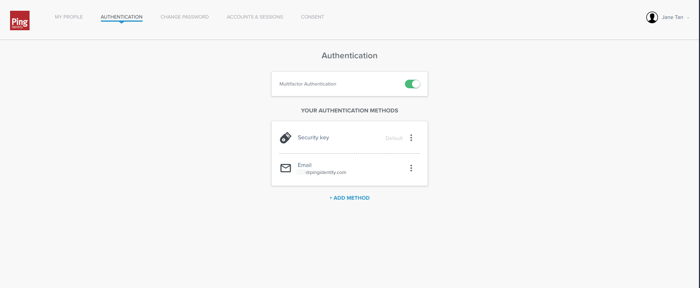
Your profile opens, showing the following tabs.
-
My profile: Update your contact details including phone number, email address, and physical address.
-
Authentication: Add one or more authentication method to securely sign on to your account or app.
-
Change password: Change your password yourself.
-
Accounts & sessions: View and manage linked accounts and open sessions.
-
Consents: View any agreements to which you have consented.
-