Setting the WS-Trust version
WS-Trust is an OASIS standard that directs web service clients and providers to interact with the security token service (STS) to issue, renew, and validate security tokens so that a trusted connection can be established. Learn more in WS-Trust 1.3 on the OASIS Standards website.
You can specify which WS-Trust version PingOne uses when issuing security tokens for passive profile sign-on attempts to the Microsoft 365 application. PingOne supports WS-Trust versions 1.2 and 1.3. The WS-Trust Version setting applies only to passive profile sign-on attempts and not to active profile sign-ons. Learn more in Adding Microsoft 365 to allow users to sign on using PingOne.
Before you begin
Add a Microsoft 365 application in PingOne.
Steps
-
In the PingOne admin console, go to Applications > Applications and click the Microsoft 365 application in the Applications list.
-
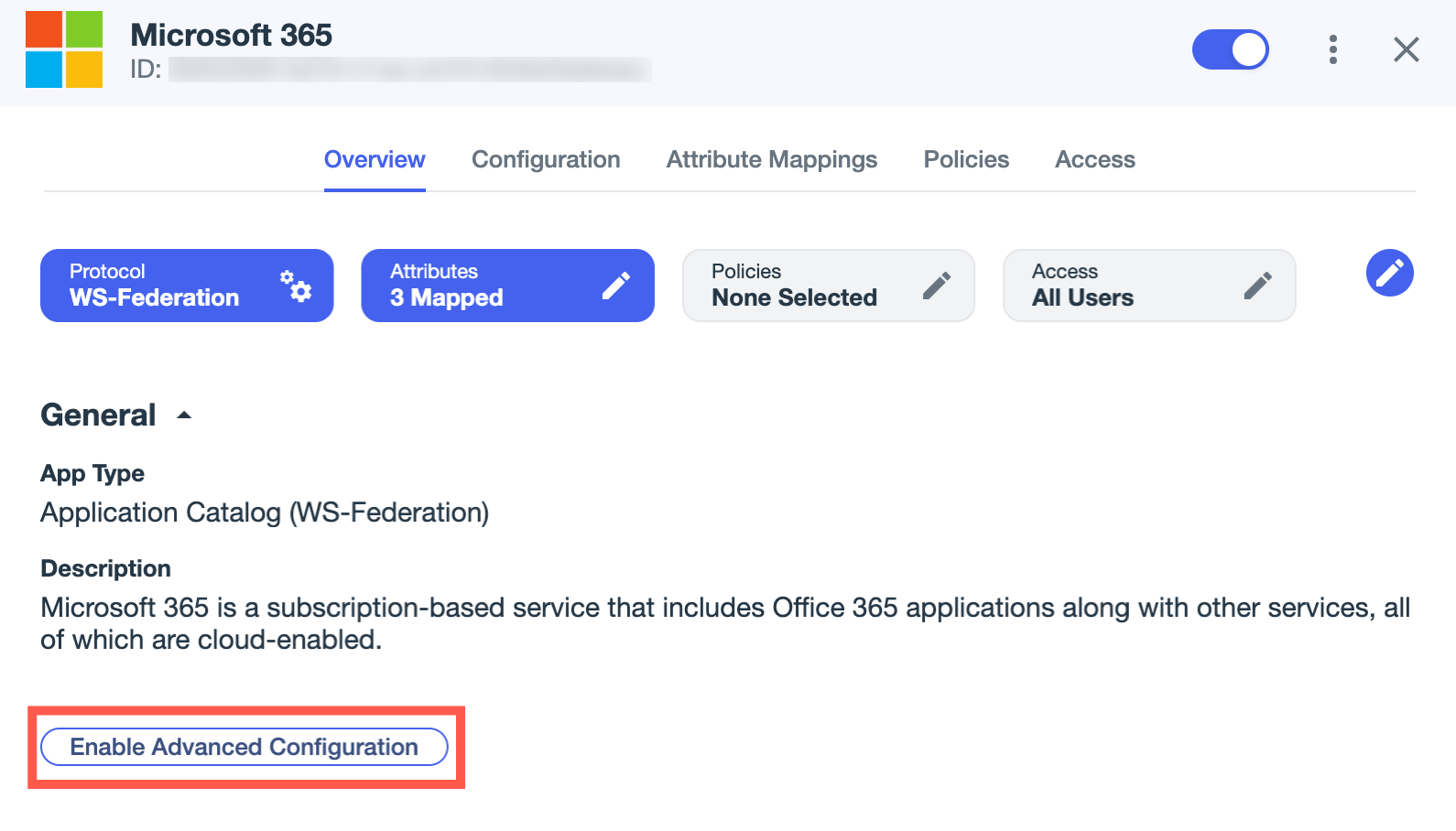
If you haven’t already, click Enable Advanced Configuration on the Overview tab and click Enable in the confirmation modal.
-
On the Configuration tab, click the Pencil icon ().
-
In the WS-Trust Version list, select either of the following versions:
-
1.2 (default): Leave the default for passive profile sign-ons.
When set to 1.2, PingOne wraps the request security token (RST) in an RST response (RSTR) as follows:
<wst:RequestSecurityTokenResponse xmlns:wst="http://schemas.xmlsoap.org/ws/2005/02/trust">
<wst:TokenType>http://docs.oasis-open.org/wss/oasis-wss-saml-token-profile-1.1#SAMLV1.1</wst:TokenType>
<wst:RequestedSecurityToken>
...
</wst:RequestedSecurityToken>
...
</wst:RequestSecurityTokenResponse>
-
1.3: Select only if your application requires version 1.3.
When set to 1.3, PingOne wraps the RST in a collection and applies the corresponding OASIS namespace URI as follows:
<wst:RequestSecurityTokenResponseCollection xmlns:wst="http://docs.oasis-open.org/ws-sx/ws-trust/200512/">
<wst:RequestSecurityTokenResponse>
<wst:TokenType>http://docs.oasis-open.org/wss/oasis-wss-saml-token-profile-1.1#SAMLV1.1</wst:TokenType>
<wst:RequestedSecurityToken>
...
</wst:RequestedSecurityToken>
...
</wst:RequestSecurityTokenResponse>
</wst:RequestSecurityTokenResponseCollection>
-
Next steps
Fine-tune the assertion validity duration as needed for the Microsoft 365 application using passive profile sign-on.