Adding a certificate
Use the Certificates tab of the Certificates and Key Pairs page to set up a certificate for your environment.
Before you begin
Before you add a certificate, ensure that the following requirements are met:
-
The certificate is valid at the time you add it to PingOne. You can’t upload a certificate before its
NotBeforedate or after itsNotAfterexpiration date. -
The private key is unencrypted.
-
The certificate, private key, and certificate chain are all PEM-encoded unless you’re uploading a PKCS12 file.
-
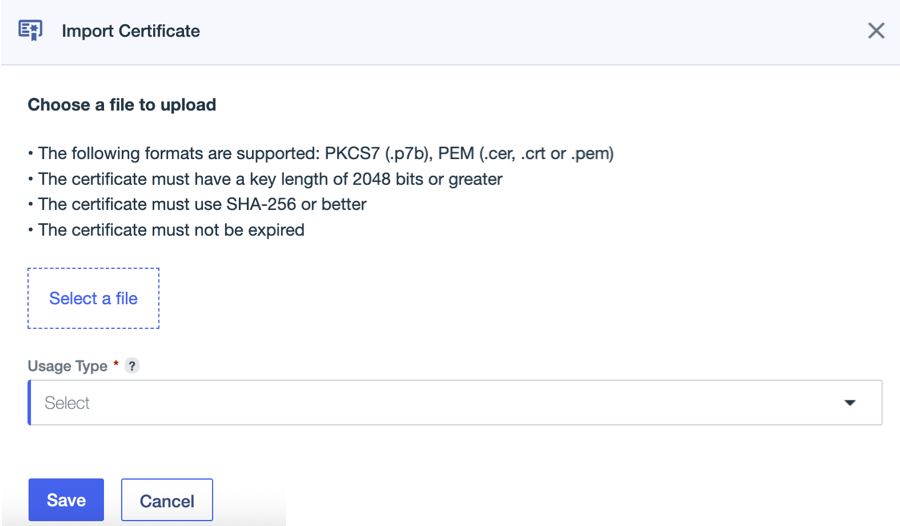
Supported certificate formats include
PKCS7 (.p7b)andPEM (.cer, .crt, .pem). -
The certificate has a key length of at least 2048 bits and uses SHA-256 or stronger encoding.
Steps
-
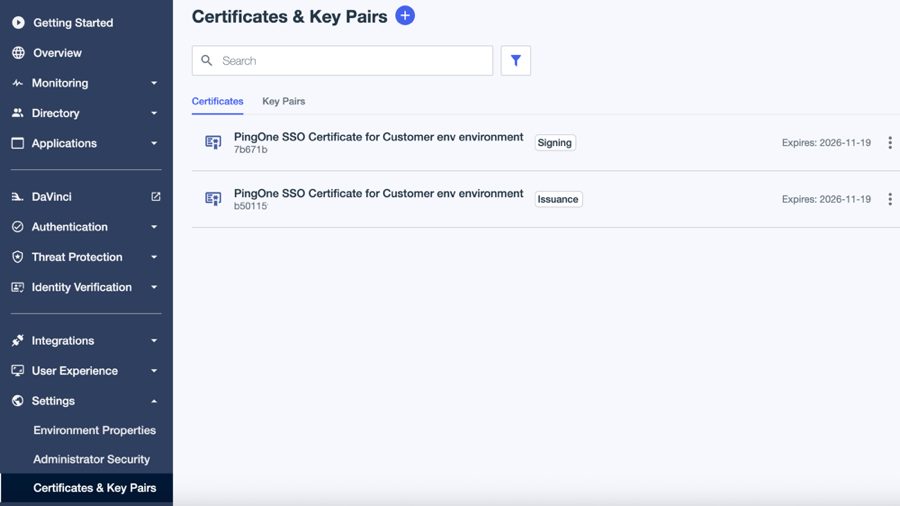
In the PingOne admin console, go to Settings > Certificates and Key Pairs.
-
On the Certificates tab, click the icon.
-
Click Select a file and select the certificate file to upload.
-
In the Usage Type list, select one of the following options:
Option Description Signing - Verification
Used to create and validate digital signatures. Enables the certificate to sign tokens or data so that other systems can verify the signature to ensure authenticity and integrity.
Encryption – Decryption
Used to securely protect sensitive data. Allows the certificate to encrypt information so only the holder of the matching private key can decrypt it.
SSL/TLS
Used to secure network connections. Supports encrypted HTTPS communication, ensuring secure connections between clients and servers.
Issuance
Used by certificate authorities (CAs) to sign and issue other certificates. Typically selected when the certificate will be used to generate subordinate or leaf certificates within a trust hierarchy.
-
Click Save.