Creating a service account for LDAP gateways
Integrating a directory with the Lightweight Directory Access Protocol (LDAP) gateway requires a dedicated service account. This service account is a universal requirement for any directory type you connect.
The account acts as the essential bridge between PingOne and your directory, providing the necessary permissions for the gateway to:
-
Authenticate and maintain a secure connection.
-
Search and retrieve user data.
-
Manage user attributes and facilitate password updates.
|
These configurations require LDAP Gateway client application version 3.1.2 or later. |
Creating the service account
-
Create a user account in an organization unit (OU) or other container from your target users.
For example,
OU=ServiceAccounts. -
Create a new user, such as
CN=PingOne LDAP GatewayNote the distinguished name (DN), you will need the full bind DN when you set up the LDAP gateway.
For example,
CN=PingOne LDAP Gateway,OU=ServiceAccounts,DC=example,DC=com.
Configuring the service account
Although specific configuration steps vary by directory type, a service account is a universal requirement for any directory you connect. At a minimum, the account requires permissions to search, read users, and reset or update passwords.
Review the following requirements based on your specific use case:
-
Migration or inbound provisioning: The account must be able to search and read user data. To keep PingOne in sync with your local directory, the account also needs permission to read the change log or deleted objects.
-
Outbound provisioning or DaVinci: If you are pushing data from PingOne to your directory, the service account requires permissions to create and update user objects.
Grant these permissions only on the specific container, such as an organization unit (OU) that hold the users you intend to migrate or synchronize, rather than the entire directory.
Configuring for Active Directory
For AD environments, follow these steps to establish the account and its location:
Steps
-
Grant Read permission on each container with users to migrate or synchronize.
-
For outbound provisioning or DaVinci: If you are pushing data from PingOne to your directory, the service account requires Write permissions to create and update user objects.
-
For inbound provisioning through the LDAP gateway, ensure that the service account can read deleted entries (
cn=Deleted Objects) to keep PingOne in sync when objects are deleted in AD:Choose from:
-
Make the service account an administrator.
-
Allow non-administrators to view the AD deleted objects container.
Learn more in Let non-administrators view deleted objects container in the Microsoft documentation.
-
Granting user password permissions
Manage user password changes and resets by enabling users to change their own passwords and administrators to reset user passwords.
Instead of making changes to each user, AD also allows admins to apply permissions to whole hierarchies of users, such as an entire OU.
Steps
-
To allow users to change their own passwords:
-
Right-click on the user group or name to which you want to grant password permissions and click Properties.
-
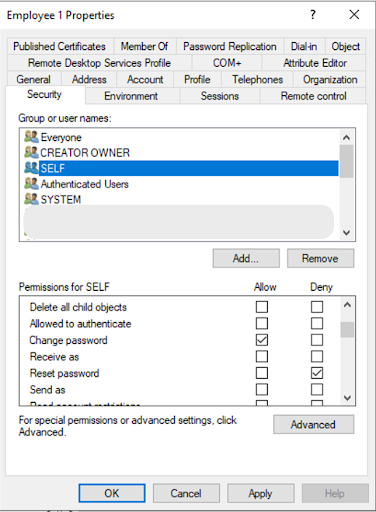
On the Security tab, select the SELF group of users, and select the Allow checkbox for Change password and the Deny checkbox for Reset password.
-
Click Apply and then OK.
To disable users from changing their own passwords, select the Deny checkbox for Change password.
-
-
To allow admins to reset user passwords:
-
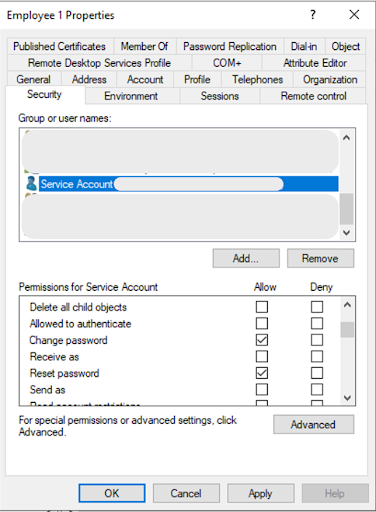
Right-click the Employee user object, click Properties, and then click the Security tab.
-
In the list of groups, select the Service Account.
-
Select the Allow checkbox for the following:
-
Change password
-
Reset password
-
-
Click Advanced, find the service account entry, and click Edit. Ensure Write pwdLastSet is set to Allow.
This is required to support force password reset on next sign-on, which sends an LDAP gateway request to set
pwdLastSet = 0. -
Click Apply and then OK.
-
-
To add permissions to an entire OU:
-
Open Active Directory Users and Computers.
-
Right-click on the OU of the target users (for example, Employees), and then click Properties.
-
To create customizable permissions, on the Security tab, click Advanced, and then click Add.
-
In the Permission Entry window, click Select a principal.
-
Enter
Service Accountfor object name and click OK. Ensure Descendant User objects is set to target the end users correctly. -
Clear the default permissions and then select the desired permissions.
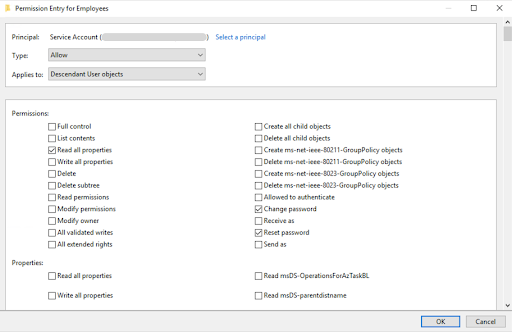
For example, the recommended permissions for a service account are:
-
Read all properties
-
Change password
-
Reset password
-
Write pwdLastSet
-
-
Click OK.
-
-
In the Advanced Security Settings window, click Add.
-
In the Permission Entry window, click Select a principal.
-
Enter
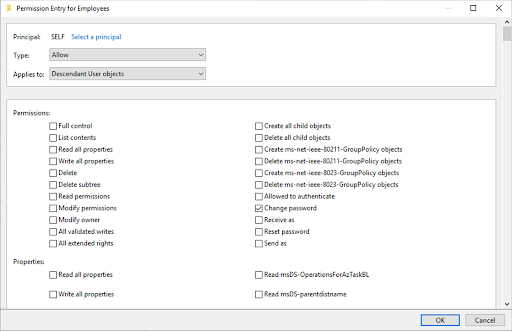
SELFfor object name and click OK. -
Clear the default permissions and then select the desired permissions.
For example, the recommended permission for SELF is Change password.
-
Click OK.
-
-
In the Advanced Security Settings window, click Apply and OK.
-
On the Security tab, click Apply and OK.
-