Design Center (early access)
|
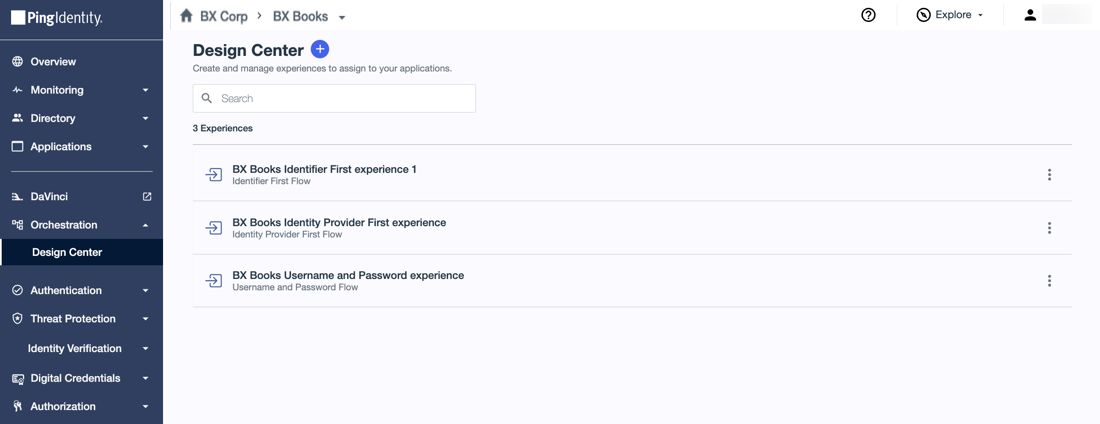
The PingOne Design Center is available for early access. After you opt-in for the feature, go to Orchestration > Design Center in the PingOne admin console to start creating experiences. |
Create and manage sign-on experiences for your users in the PingOne Design Center. You can quickly design a basic username and password experience or more advanced experiences that include registration and account recovery capabilities, risk-based multi-factor authentication (MFA), and more. These experiences are powered by PingOne DaVinci flows, and you can assign them to your applications to control how users authenticate.
You must have the Environment Admin role or a custom role with equivalent permissions to add and manage experiences.
You can choose from three types of sign-on patterns to implement in your experiences:
| Experience | Description |
|---|---|
Username and Password |
A common sign-on experience in which users enter a username and password to authenticate. Learn more in Adding an experience - Username and Password (early access). |
Identifier First |
A sign-on experience that allows users to enter an identifier, such as a username or email address, before being prompted for additional authentication factors. Learn more in Adding an experience - Identifier First (early access). |
Identity Provider First |
A sign-on experience that allows users to bypass the PingOne sign-on prompt and authenticate directly with an external identity provider (IdP) such as Google, Facebook, or a custom OpenID Connect (OIDC) or SAML provider. PingOne provides multi-factor authentication (MFA). Learn more in Adding an experience - Identity Provider First (early access). |
Depending on your PingOne license and the services enabled in your environment, experiences can include the following advanced capabilities:
-
Passwordless authentication (requires PingOne MFA)
-
Adaptive authentication (requires PingOne MFA and PingOne Protect)
-
Bot detection during new account registration (requires PingOne Protect)
-
Account takeover mitigation (requires PingOne MFA and PingOne Protect)
Completed experiences generate read-only PingOne DaVinci flows that you can clone and edit in DaVinci to support more advanced use cases. You must have the DaVinci Admin role to clone and customize these flows.
Building the experience
After you select the sign-on pattern you want to use, you’re guided through the available capabilities for that sign-on pattern. As you make configuration selections in the left pane, the Preview pane on the right updates to show a visualization of the experience you’re building.
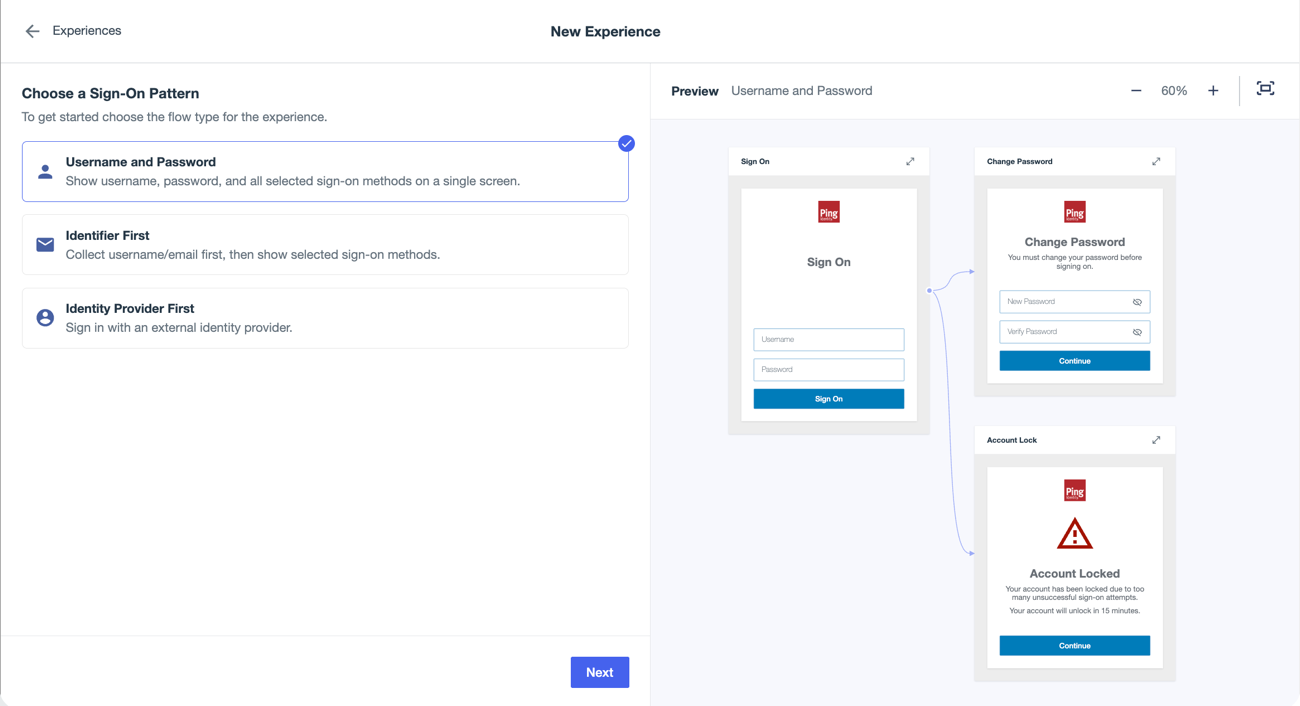
You can adjust the size of the objects in the Preview pane by either:
-
Using the Plus () or Minus () icons in the right corner to increase or decrease the zoom level.

-
Clicking the Fit-to-window icon (
 ) in the upper right corner to resize the contents to use the maximum size that fits in the pane.