Audit report (early access)
PingOne is introducing a refreshed UI for the audit report in the PingOne admin console. While the core functionality and most features remain consistent with the previous version, the updated UI includes several improvements designed to enhance your experience. Changes include:
-
A modern and intuitive layout for easier navigation.
-
An updated Time Zone list for easier selection.
-
An improved method for reordering selected fields using the Gear icon () located next to Columns.
Lean more about running audit reports in Audit.
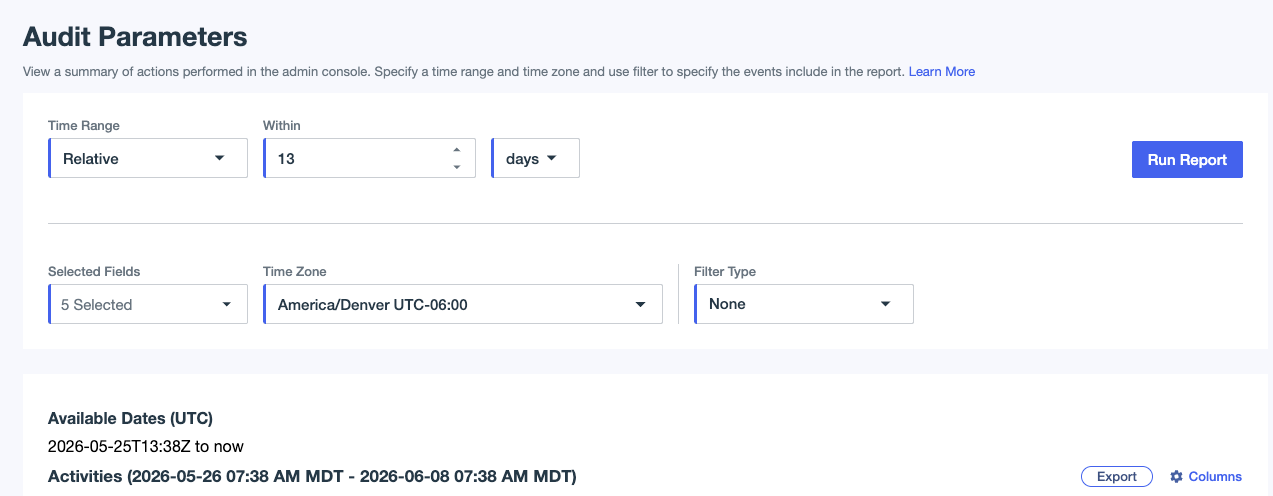
You can run reports to see a summary of user events or events for actions performed in the PingOne admin console.
|
You can find a complete list of events logged in PingOne in Audit Reporting Events in the PingOne API documentation. |
Running an audit report
Steps
-
In the PingOne admin console, go to Monitoring > Audit and enter the report parameters:
Option Description Time Range
Limit the report results to a specified range of time.
-
Data up to 14 days old relative to the current date is available immediately.
-
Data older than 14 days must be requested from the Audit page or using the API, and you can’t request data for dates that are more than 2 years (730 days) before the current date.
-
You can run reports a maximum of 14 days at a time. If you enter an invalid time range, you’re prompted to adjust it before you run the report.
Selected Fields
Specify which columns appear in the results list.
Time Zone
Specify the time zone to use in the results list. The timestamp shows the date and time for the selected time zone.
Filter Type
Limit the results to a particular type, user, or resource.
Secondary Filter Type
Specify a secondary filter to limit the results to a particular type, user, or resource. You must specify a primary filter type before you can select a secondary filter type.
-
-
Click Run Report.