Configuring and setting up PingOne Verify
To seamlessly integrate PingOne Verify into your identity workflows, first optionally configure language localization for your end users, then choose your orchestration method.
Configuring PingOne Verify language localization
Optionally use language localization to configure one or more languages and modify the PingOne Verify text fields that are presented to end users in notifications and agreements.
Language localization detects the user’s browser locale and refers to the corresponding language pack in PingOne.
Integrating PingOne language packs provides seamless localization and translation of PingOne Verify user interfaces, allowing users to interact with it in their preferred language. Learn more in Languages.
Steps
-
In the PingOne admin console, go to User Experience > Languages.
-
Click your preferred language or add a language. Learn more in Adding a language.
-
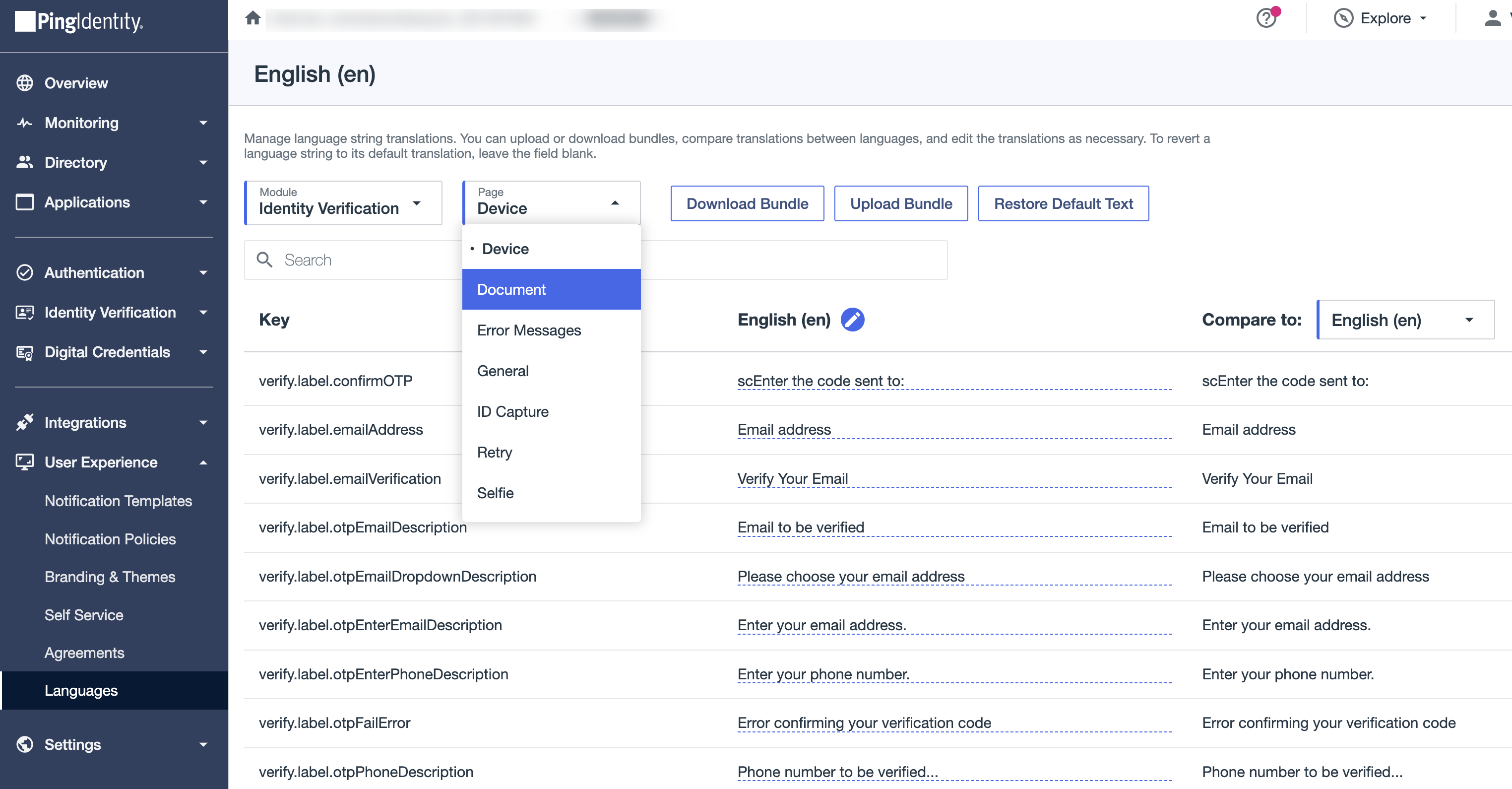
In the Module list, select Identity Verification.
-
In the Page list, select a page to view the associated keys. The Identity Verification module includes the following pages:
-
Device
-
Document
-
Error Messages
-
General
-
ID Capture
-
Retry
-
Selfie
-
Voice
-
-
(Optional) In the Compare to: list, select another language to compare the text with a language other than the default language.
-
In the translation column, click the Pencil icon ().
-
Edit the text in the translation field to your preferred translation.
-
Click Save.
-
In the upper right, click the toggle to enable the language.
|
Learn more in Downloading a language bundle and Uploading a language bundle. |
Configuring and orchestrating PingOne Verify
Seamlessly integrate PingOne Verify into your identity workflows.
Before you begin
Regardless of the configuration method you choose, you’ll need:
-
A PingOne account with at least one environment that includes the PingOne Verify service. Learn more in Starting a PingOne trial and Creating an environment.
-
A PingOne Verify policy, which can be the default policy you modify or a new policy. Learn more in Creating a verify policy.
-
(Optional) To configure language localization and modify the PingOne Verify text fields that are presented to end users in notifications and agreements.
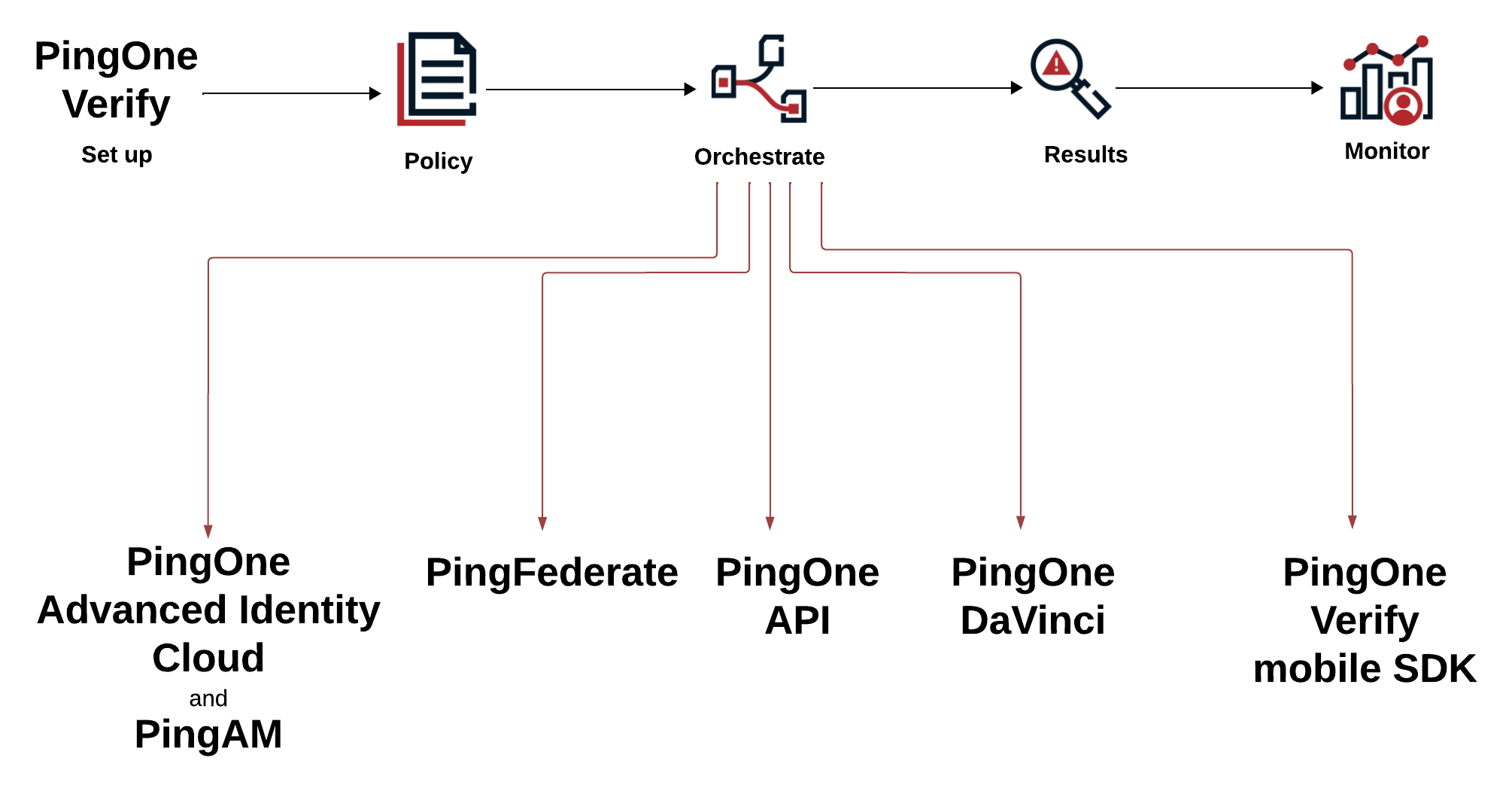
The metro map shows:
-
The PingOne Verify service is enabled within the PingOne environment.
-
The default PingOne Verify policy is customized with specific rules and transaction requirements, such as Facial Comparison and Liveness.
-
Verification transactions are orchestrated using integrated identity options.
-
The verification flow is executed with the end user, and the results are retrieved.
-
Oversight is maintained by reviewing results and dashboards.
Steps
-
Choose one of the following methods to orchestrate a verify transaction:
Choose from:
PingOne Advanced Identity Cloud and PingAM
Integrating with PingOne Advanced Identity Cloud and PingAM
Advanced Identity Cloud is a digital identity and access management (IAM) software as a service (SaaS) solution for any identity, workforce, or consumer.
PingAM software manages access to resources, such as web pages, applications, or web services available over a network. PingAM centralizes access control by handling both authentication and authorization.
To take advantage of PingOne Verify features, you can integrate PingOne Verify nodes into your Advanced Identity Cloud and PingAM journeys. Learn more in Journeys.
Before you begin
Make sure you have:
-
A PingOne Advanced Identity Cloud or PingAM account. Getting started with PingOne Advanced Identity Cloud.
-
A PingOne account. Learn more in Starting a PingOne trial.
-
A verify policy configured in PingOne (or use the default verify policy).
-
A worker application with the Identity Data Admin role assigned in PingOne.
Steps
-
Configure the PingOne service in Advanced Identity Cloud.
-
Set up your user journey in Advanced Identity Cloud or PingAM with PingOne Verify nodes in the journey:
-
The PingOne Verify Evaluation node to start a new identity verification with PingOne Verify.
-
The PingOne Verify Completion Decision node to check the status of the last verify transaction.
-
The PingOne Verify Authentication node to integrate biometric authentication functionality in your journey.
-
The PingOne Verify Proofing node to integrate verification functionality using Government ID, Facial Comparison, and Liveness in a journey.
For self-managed deployments, these nodes are available only PingAM 8.0 or later. If you’re using an earlier version of PingAM, use Marketplace nodes, such as the PingOne Verify Authentication node.
-
-
Validate that the PingOne Verify Evaluation node is working by doing the following:
-
Configure the node with Store Verification Metadata and Store Verified Data enabled.
-
Use a Scripted Decision node to return the node state and make sure the values of the
pingOneVerifyMetadata,pingOneVerifyVerifiedData, andpingOneVerifyEvaluationFailureReasonproperties are what you expect. You can also run the journey with Debugging enabled. -
Add message nodes attached to individual results outputs to understand the flow.
-
-
Validate that the PingOne Verify Completion Decision node is working by doing the following:
-
Use logger messages in your Completion processing script to determine the processing goals and outcomes, and monitor the log.
-
Evaluate the
nodeStatevalues of the PingOne Verify nodes that were set in the script using a Scripted Decision node that returns the nodeState, or with the Debugger enabled -
Add message nodes attached to individual results outputs to understand the flow.
-
PingFederate
Using PingFederate
To use PingFederate to configure the PingOne Verify Integration Kit:
Steps
-
Download PingFederate and the PingOne Verify Integration Kit from the PingFederate Downloads website.
You’ll need to work with your Ping Identity account team to start a trial license for PingFederate.
Learn more about getting started in the PingOne Verify Integration Kit documentation.
PingOne API
To configure PingOne Verify with the PingOne REST API:
Steps
-
Create your theme in PingOne Branding and themes to brand the PingOne Verify web experience for your end users.
-
(Optional) Use language localization to configure one or more languages and modify the PingOne Verify text fields that are presented to end users.
-
(Optional) If you enabled one-time passcode (OTP) through phone or email verification in your policy, create notification templates.
-
Trigger your first verify transaction:
-
Download the PingOne Postman collection.
-
Note the Variables you must value.
-
Obtain a PingOne access token.
Your {{authPath}} environment variable in Postman should begin with
auth.pingone. See Variables you must value in the PingOne API documentation to determine the correct {{authPath}} for your geography. Note that nothing trails the domain in the {{authPath}} variable. -
Create a new verify transaction with the Create Verify Transaction API call.
Your {{apiPath}} environment variable in Postman should begin with
api.pingone. See Variables you must value in the PingOne API documentation to determine the correct {{apiPath}} for your geography. Note that the trailing/v1is required (for example,api.pingone.com/v1).Learn more in PingOne API requests.
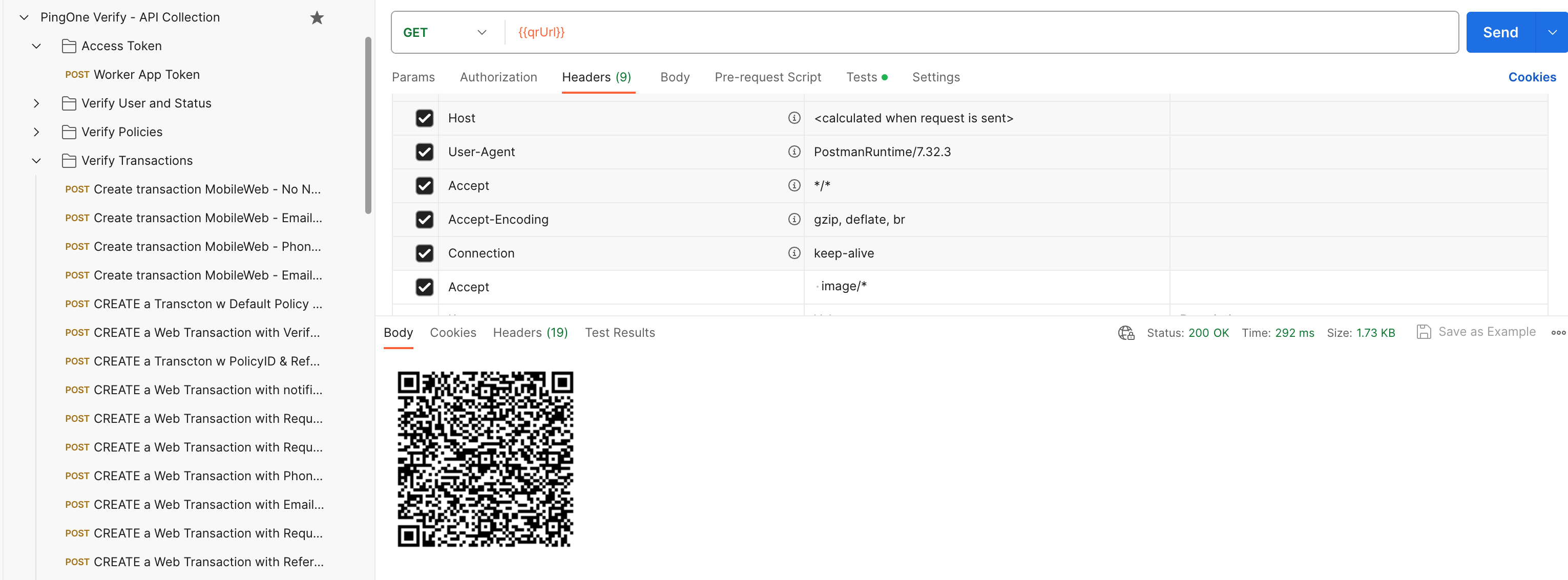
Result:
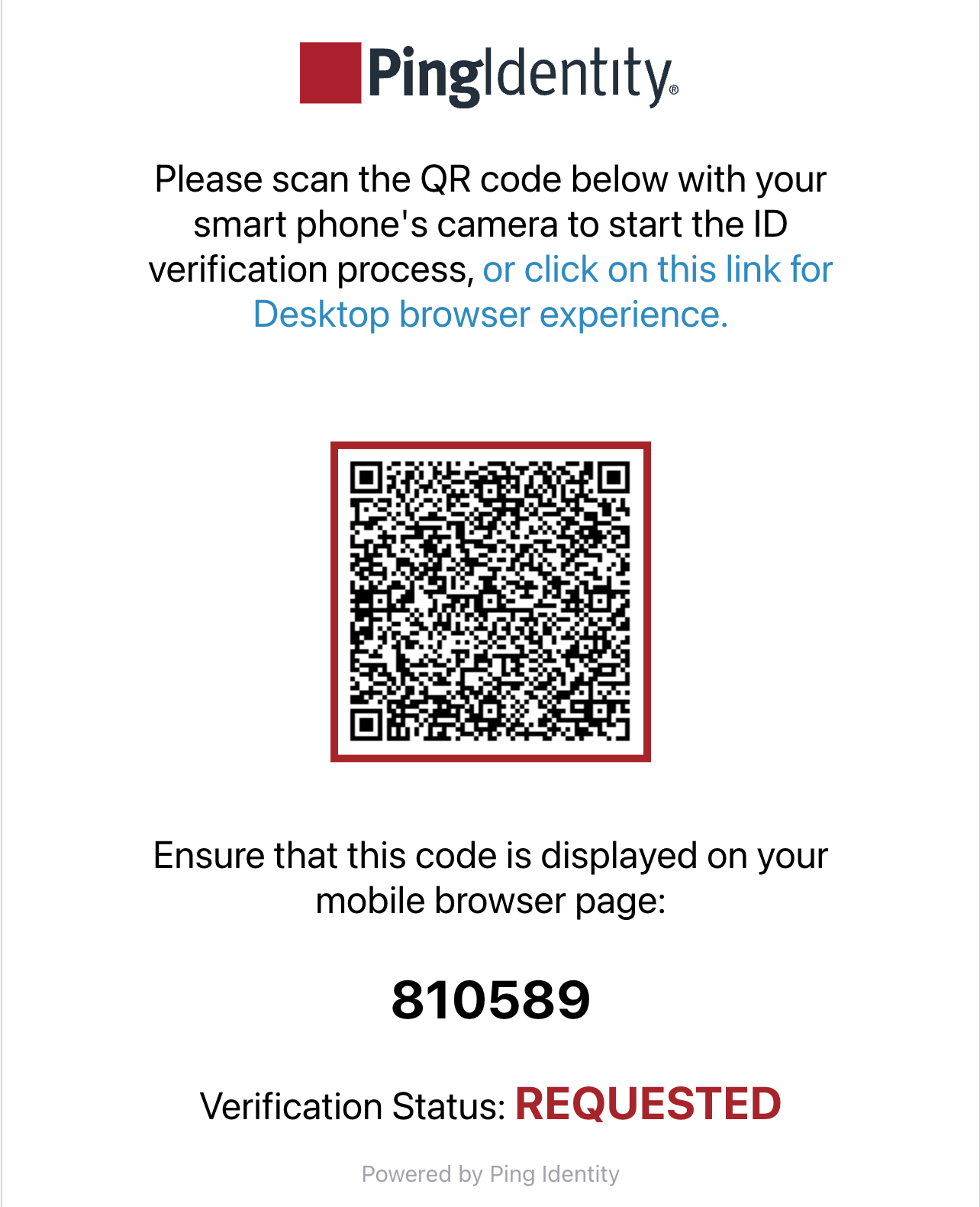
Postman renders a QR code.
-
Scan the QR code with a smartphone camera to try the mobile web flow.
-
View the data submitted in the transaction and the scores returned from verification services.
Choose from:
-
Using the API: Use the Verified Data and Verification Metadata endpoints.
-
Using the PingOne admin console:
-
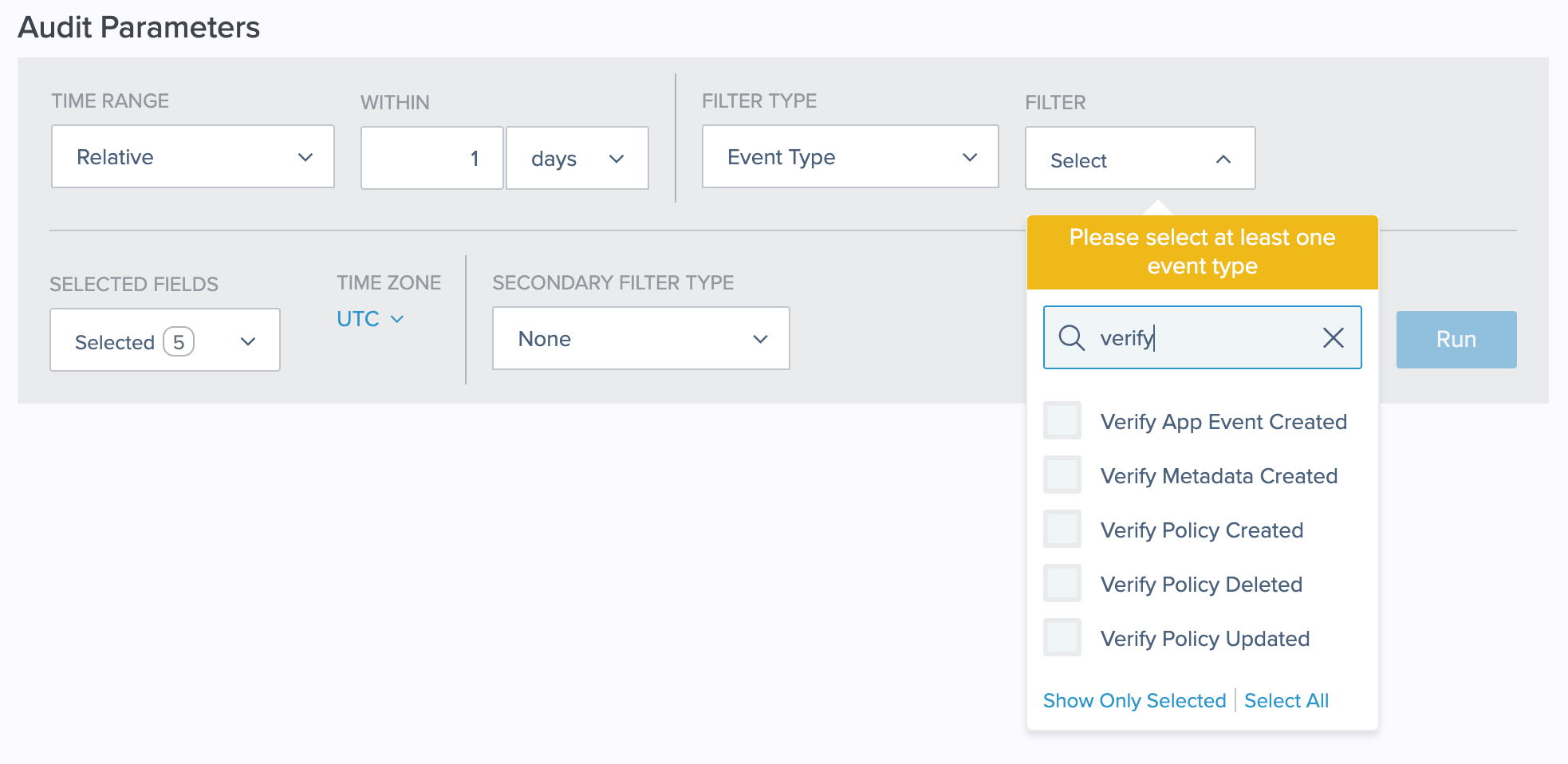
In PingOne, go to Environment → Audit.
-
Edit the Time Range and Within fields as needed.
-
For Filter Type, select Event Type.
-
For Filter, enter
verifyin the Search Filter Type field. -
Select any of the Verify event types.
You can find a complete list of events logged in PingOne in Audit Reporting Events in the PingOne API documentation.
-
Click Run.
-
To view the specific data and scores from an event, click View in the Details column in the report summary.
-
-
PingOne DaVinci
To configure PingOne Verify using PingOne DaVinci:
Before you begin
Add PingOne DaVinci to your PingOne environment. Learn more in Creating an environment.
Steps
-
Create your theme in PingOne Branding and themes to brand the PingOne Verify web experience for your end users.
-
(Optional) Use language localization to configure one or more languages and modify the PingOne Verify text fields that are presented to end users.
-
(Optional) If you enabled OTP through phone or email verification in your policy, create notification templates.
-
Import the PingOne Verify quick start flow template in PingOne DaVinci by downloading it from the Ping Identity Marketplace.
-
Update the flow with your PingOne Verify policy:
-
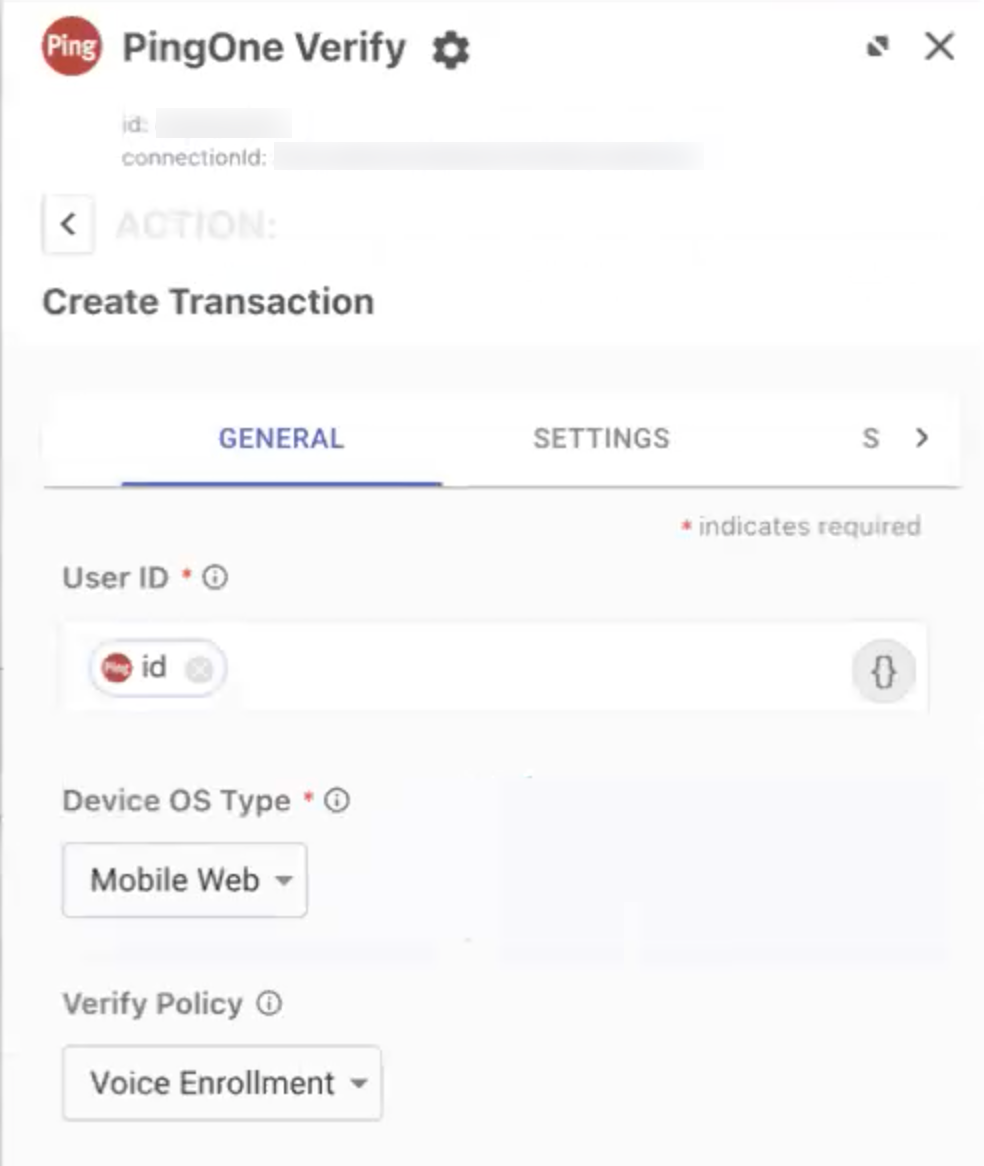
Click the PingOne Verify
Create transactionnode in the flow. -
In the Verify Policy list, select the policy to use.
-
-
To run the flow and trigger a PingOne Verify transaction, click Try Flow.
Result:
PingOne DaVinci renders a QR code.
include::partial$p1_verify_scan_qr_code]
-
View the data submitted in the transaction and the scores returned from verification services.
Choose from:
-
Using the API: Use the Verified Data and Verification Metadata endpoints.
-
Using the PingOne admin console:
-
In PingOne, go to Environment → Audit.
-
Edit the Time Range and Within fields as needed.
-
For Filter Type, select Event Type.
-
For Filter, enter
verifyin the Search Filter Type field. -
Select any of the Verify event types.
You can find a complete list of events logged in PingOne in Audit Reporting Events in the PingOne API documentation.
-
Click Run.
-
To view the specific data and scores from an event, click View in the Details column in the report summary.
-
-
Mobile SDK
Using the PingOne Verify mobile SDK
Mobile application developers use the PingOne Verify mobile SDK for iOS and PingOne Verify mobile SDK for Android to create the PingOne Verify app for their users. The app is a self-service app for iOS or Android devices that guides the user through the process of taking photos of their ID and a selfie and submitting the photos to PingOne for verification.
To use the PingOne Verify mobile SDK:
Steps
-
Run the sample app from Github:
-
Integrate the PingOne Verify mobile SDK into your own app:
-
-
Review results and dashboards in Reviewing and managing verification and Monitoring PingOne Verify transaction activity and license usage.