Duplicating an experience (early access)
If you have an existing experience that you want to use as the basis for a new one, you can duplicate and update the experience in the PingOne Design Center.
Before you begin
You must have the Environment Admin role or a custom role with equivalent permissions to duplicate experiences.
Steps
-
In the PingOne admin console, go to Orchestration > Design Center and browse or search for the experience you want to duplicate.
-
Click the More Options (⋮) icon and select Duplicate.
Result
When you click Duplicate, the following occurs:
-
The copied experience is available from the list of available experiences in the Design Center. The experience is created with the same settings as the original experience, except for the name, which is appended with
- copy - <created-date-time>.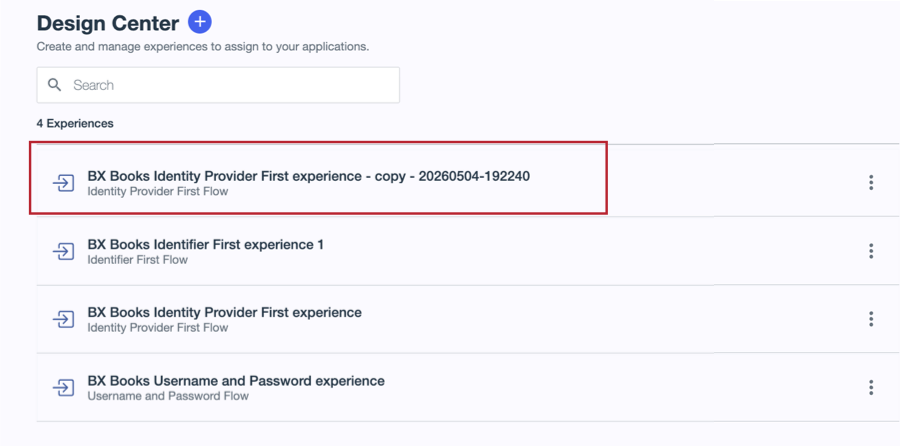
-
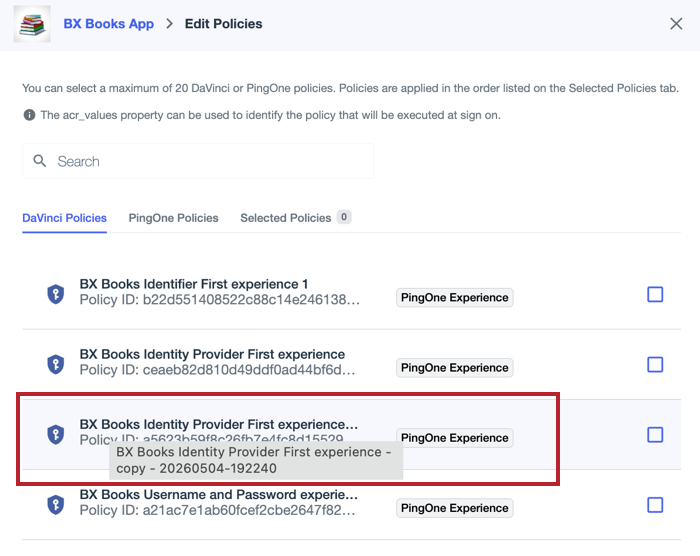
The copied experience is available on the Policies tab for applications as a PingOne DaVinci flow policy that you can assign to the application. Learn more in Authentication policies for applications and Applying authentication policies to an application.
-
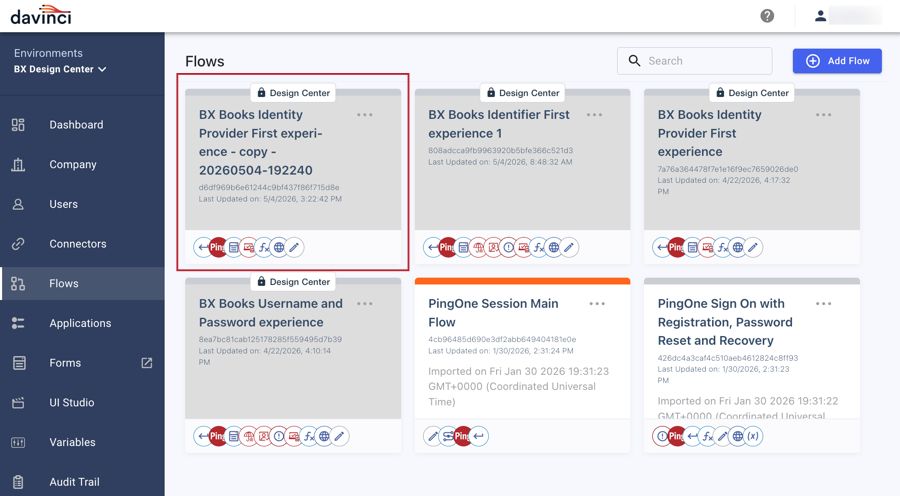
The copied experience is available in the DaVinci admin console as a new read-only DaVinci flow.
-
The unique read-only sign-on and registration forms for the copied experience are listed in the Design Center Forms section of the DaVinci Forms page.
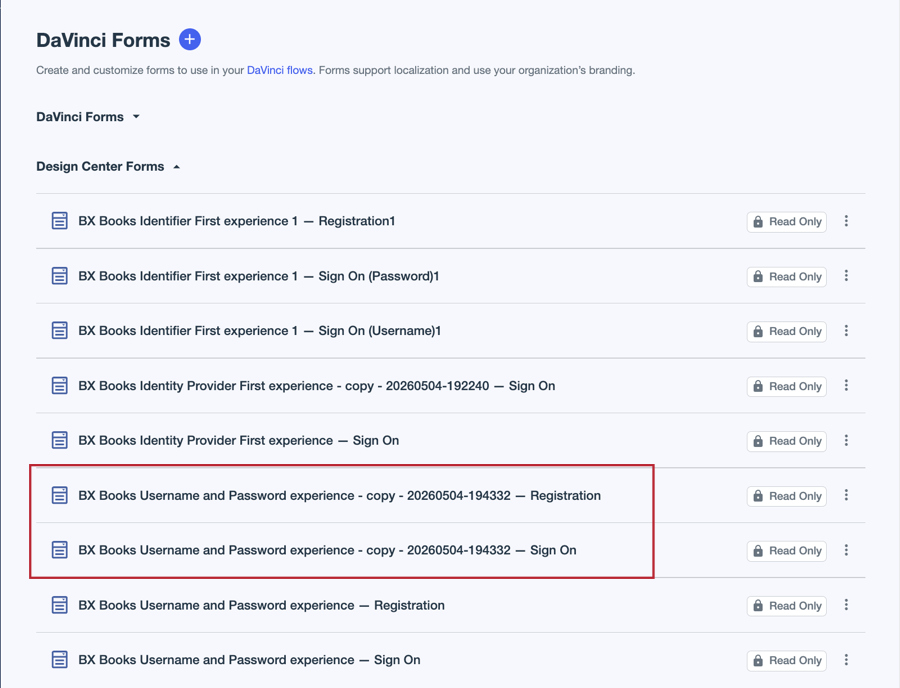
If you duplicated an identity provider first experience or another experience for which you didn’t enable registration, there won’t be a registration form.
-
-
Click the More Options (⋮) icon for the new experience and select Edit.
-
Update the settings applicable to the experience you are editing.
Learn more about the settings for the different types of experiences in the following topics:
-
Click Save.