Handling user consent for remembered device creation
Review different methods of adding a user consent form into a PingFederate authentication policy, forwarding the user’s response, and generating a browser fingerprint to create a remembered device.
Method 1 (default): Seek user consent at the end of the authentication flow
In this method, the PingOne MFA Remember Me Manager Adapter requests user consent directly before creating a Remember Me device. Because the PingOne MFA Remember Me Manager Adapter is the last step in the authentication policy, user consent is gathered at the end of the authentication flow.
This method is used by default, and doesn’t require you to modify the adapter providing the first authentication factor in your PingFederate authentication policy.
Capturing user consent for the PingOne MFA Remember Me Manager Adapter
When invoked in the authentication flow, the PingOne MFA Remember Me Manager Adapter displays a page asking the user whether they want their device to be remembered.
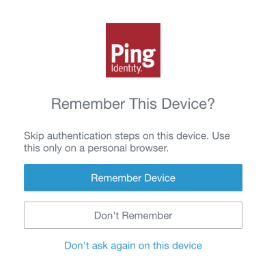
|
If using the PingFederate Authentication API, refer to the REMEMBER_ME_USER_CONSENT_REQUIRED state instead. |
Handling user consent for the PingOne MFA Remember Me Manager Adapter
The PingOne MFA Remember Me Manager Adapter determines whether to create a trusted device based on the user’s response:
-
If the user clicks
Remember Device(or entersrememberfor thesubmitRememberMeUserConsentaction in the PingFederate Authentication API), the adapter attempts to create a remembered device. If the user completes the authentication flow successfully, the followingpingone.mfa.remember.me.device.creation.statusvalues are possible:-
com.pingidentity.pingone.device_created: Set if the user completed the full MFA flow successfully. -
com.pingidentity.pingone.device_not_created_mfa_not_completed: Set if the user didn’t complete the full MFA flow. For example, if the user bypassed MFA. -
com.pingidentity.pingone.device_not_created_policy_disallows_remember_me: Set if Remember Me isn’t configured in the PingOne MFA policy.
-
-
If the user clicks
Don’t Remember(or entersdoNotRememberfor thesubmitRememberMeUserConsentaction in the PingFederate Authentication API), the adapter skips device creation.If the user completes the authentication flow successfully, the
pingone.mfa.remember.me.device.creation.statusis set tocom.pingidentity.pingone.device_not_created_user_declined. -
If the user clicks
Don’t ask again on this device(or entersdoNotAskAgainfor thesubmitRememberMeUserConsentaction in the PingFederate Authentication API), the adapter sets a persistent cookie (pf_remembermeadapter_user_consent_donotaskagain) in the user’s browser to remember this decision. This prevents the PingOne MFA Remember Me Manager Adapter from displaying the Remember This Device? page on any subsequent authentication attempts made with that device for one year.If the user completes the authentication flow successfully, the
pingone.mfa.remember.me.device.creation.statusis set tocom.pingidentity.pingone.device_not_created_user_opted_do_not_ask_again.
Generating the Payload for the PingOne MFA Remember Me Manager Adapter
If the user clicked Remember Device when prompted for consent and completed the authentication flow successfully, the pingone-mfa-remember-me-spinner.html file generates the required signals payload for the PingOne MFA Remember Me Manager Adapter to submit to the Create Remember Me Device PingOne API.
|
If using the PingFederate Authentication API, you must run the signals SDK and submit the required signals payload in the request body for the |
Method 2: Seek user consent at the start of the authentication flow
Display your own form to collect user consent at the start of the flow. User consent handling is still performed at the end of the flow.
To use this method, your authentication policy must contain either the HTML Form Adapter or a custom adapter that can:
-
Act as a first authentication factor
-
Provide the user with a checkbox to opt in for Remember Me functionality.
To maintain security, Remember Me functionality should only be used on private devices or browsers. Make sure the Remember Me template warns users not to enable this feature on a public or shared device.
-
Populate the
org.sourceid.saml20.adapter.idp.authn.deviceSharingTypechained attribute based on whether the user selects the checkbox.This chained attribute forwards the user’s response to adapters configured later in the PingFederate authentication policy. The value
PRIVATEmeans the user consented to have their device remembered. The valueSHAREDmeans the user chose not to have their device remembered.
Capturing user consent for an HTML Form Adapter or custom adapter
When invoked in the authentication flow, the first authentication factor displays a custom form asking the user whether they want their device to be remembered.
- Using the HTML Form Adapter
-
To capture user consent with the HTML Form Adapter, you must:
-
Select the Enable 'This is My Device' checkbox in the HTML Form Adapter configuration to make a This is my device checkbox available to the user on the initial sign-on page.
The HTML Form Adapter automatically sets a value for the
org.sourceid.saml20.adapter.idp.authn.deviceSharingTypechained attribute based on whether the user selects the checkbox provided on the template.-
If you don’t select the Enable 'This is My Device' checkbox in the HTML Form Adapter configuration, the PingOne MFA Remember Me Manager Adapter will use method one to collect user consent instead.
-
You can change the name of the This is my device checkbox the user sees on the initial sign-on page in the HTML Form Adapter files.
-
The 'This is My Device' Lifetime setting doesn’t work when using the Remember Me experience with the PingOne MFA Remember Me Manager and Verifier adapters. Configure how long devices remain trusted for in the PingOne MFA policy instead.
-
-
- Using a custom adapter
-
To capture user consent with a custom adapter, you must:
-
Make a Remember Me checkbox available to the user at the initial sign-on page.
-
Populate a value for the
org.sourceid.saml20.adapter.idp.authn.deviceSharingTypechained attribute based on how the user interacted with the checkbox:-
If the user selects the checkbox, consenting to have the PingOne MFA Remember Me Manager Adapter create a remembered device, set
org.sourceid.saml20.adapter.idp.authn.deviceSharingType = “PRIVATE” -
If the user doesn’t select the checkbox, withholding their consent, set
org.sourceid.saml20.adapter.idp.authn.deviceSharingType = “SHARED”
-
-
Handling user consent for an HTML Form Adapter or custom adapter
The PingOne MFA Remember Me Manager Adapter determines whether to create a trusted device based on the value of the org.sourceid.saml20.adapter.idp.authn.deviceSharingType chained attribute forwarding the user’s response:
-
If
org.sourceid.saml20.adapter.idp.authn.deviceSharingType = “PRIVATE”, the adapter attempts to create a remembered device. If the user completes the authentication flow successfully, the followingpingone.mfa.remember.me.device.creation.statusvalues are possible:-
com.pingidentity.pingone.device_created: Set if the user completed the full MFA flow successfully. -
com.pingidentity.pingone.device_not_created_mfa_not_completed: Set if the user didn’t complete the full MFA flow. For example, if the user bypassed MFA. -
com.pingidentity.pingone.device_not_created_policy_disallows_remember_me: Set if Remember Me isn’t configured in the PingOne MFA policy.
-
-
If
org.sourceid.saml20.adapter.idp.authn.deviceSharingType = “SHARED”, the adapter skips device creation.If the user completes the authentication flow successfully, the
pingone.mfa.remember.me.device.creation.statusis set tocom.pingidentity.pingone.device_not_created_user_declined.
Generating the Payload for an HTML Form Adapter or custom adapter
If the user gave permission for the PingOne MFA Remember Me Manager Adapter to create a remembered device and completed the authentication flow successfully, the pingone-mfa-remember-me-spinner.html file generates the required signals payload for the PingOne MFA Remember Me Verifier Adapter and PingOne MFA Remember Me Manager Adapter as necessary.
|
If using the PingFederate Authentication API, you must run the signals SDK and submit the required signals payload in the request body for the |