Remember Me authentication policy configuration examples
Review example use cases and best practices for adding the PingOne MFA Remember Me Verifier Adapter and PingOne MFA Remember Me Manager Adapter into a PingFederate authentication policy.
Best Practices
-
The authentication policy’s order of operation specifies which authentication steps to skip if the PingOne MFA Remember Me Verifier Adapter detects a trusted device. You can find specific examples in the following use cases.
-
Place the PingOne MFA Remember Me Manager Adapter at the end of the authentication flow, just before reaching any policy contracts, to make sure it can create Remember Me devices only after a successful authentication flow.
-
Failures in the PingOne MFA Remember Me Verifier Adapter and PingOne MFA Remember Me Manager Adapter should default back to the normal MFA flow.
|
You can configure a Remember Me experience without including the PingOne MFA IdP Adapter in your authentication policy, but Ping Identity currently recommends including it to avoid unexpected behavior. To configure Remember Me without the PingOne MFA IdP Adapter, you must make sure the PingOne MFA Remember Me Verifier Adapter and PingOne MFA Remember Me Manager Adapter configurations use a MFA Policy for Remember Me that enables the ability to remember users during authentication. |
Single MFA Adapter Flow Use Case (Skip 1FA and MFA)
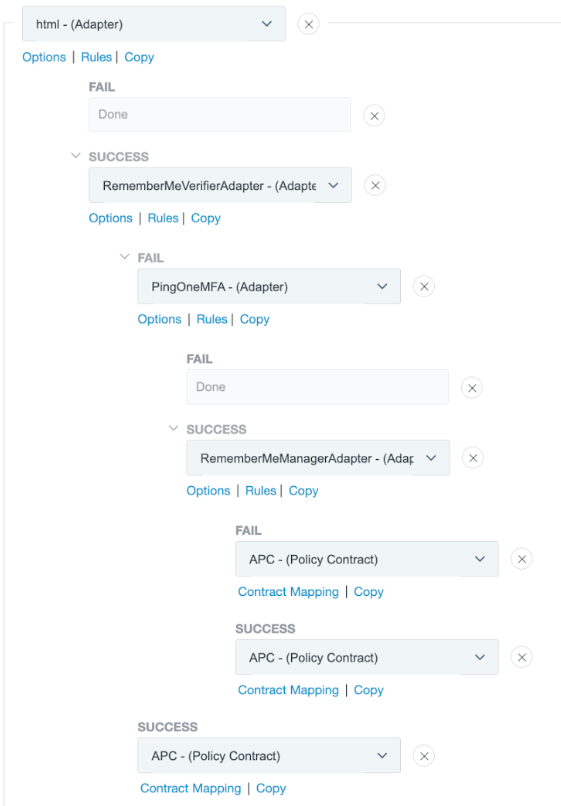
If the device is trusted, skip both the first and multi-factor authentication. This example uses the HTML Form Adapter as the first authentication factor, and the PingOne MFA IdP Adapter as the second authentication factor.
Policy structure
-
In the PingFederate admin console, go to Authentication > Policies > Policies.
-
Select the IdP Authentication Policies checkbox.
-
Open an existing authentication policy, or click Add Policy.
Learn more in Defining authentication policies in the PingFederate documentation.
-
In the Policy section, in the Select list, select a PingOne MFA Remember Me Verifier Adapter instance.
-
Configure the authentication paths for the PingOne MFA Remember Me Verifier Adapter:
-
In the Success path, select the authentication policy contract to execute at the end of a successful MFA flow.
This step allows the user to skip 1FA and MFA if their device is trusted.
-
In the Fail path, configure the first authenticator factor as the next step.
-
-
Configure the authenticator paths for the first authentication factor:
-
In the Success path, select a PingOne MFA IdP Adapter instance.
-
In the Fail path, select Done.
-
-
Configure the authenticator paths for the second authentication factor:
-
In the Success path, select a PingOne MFA Remember Me Manager Adapter instance.
-
In the Fail path, select Done.
-
-
Configure the authenticator paths for the PingOne MFA Remember Me Manager Adapter:
-
In the Success path, select the authentication policy contract to execute at the end of a successful MFA flow.
-
In the Fail path, select the authentication policy contract to execute at the end of a successful MFA flow.
The failure result is the same as the success result in this step because the normal MFA flow should be followed if a device isn’t going to be remembered.
-
-
Map the username to the PingOne MFA Remember Me Manager Adapter adapter from a previous adapter:
-
Under the PingOne MFA Remember Me Manager Adapter instance, click Options.
-
On the Incoming User ID page, in the Source list, select a previous adapter in the authentication flow that can pass the username value.
-
In the Attribute list, select username.
-
Select the User ID Authenticated checkbox.
The PingOne MFA Remember Me Manager Adapter doesn’t work if it doesn’t get the username value from the previous adapters.
-
-
Click Done.
Multiple MFA Adapters Use Case (Skip 1FA and MFA)
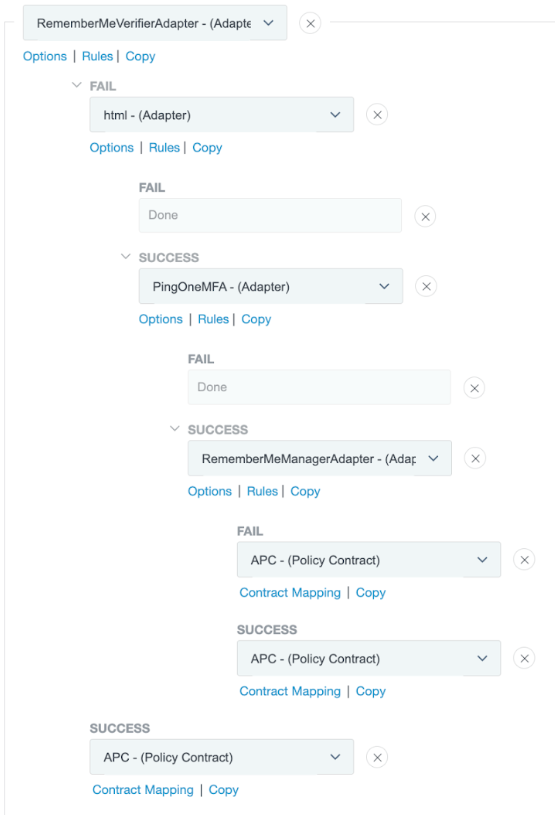
If the device is trusted, skip all authentication steps, even with multiple MFA adapters configured. This example uses the HTML Form Adapter as the first authentication factor, a PingOne MFA IdP Adapter instance as the second authentication factor, and another PingOne MFA IdP Adapter instance as the third authentication factor.
Policy structure
-
In the PingFederate admin console, go to Authentication > Policies > Policies.
-
Select the IdP Authentication Policies checkbox.
-
Open an existing authentication policy, or click Add Policy.
Learn more in Defining authentication policies in the PingFederate documentation.
-
In the Policy section, in the Select list, select a PingOne MFA Remember Me Verifier Adapter instance.
-
Configure the authentication paths for the PingOne MFA Remember Me Verifier Adapter:
-
In the Success path, select the authentication policy contract to execute at the end of a successful MFA flow.
This step allows the user to skip 1FA and MFA if their device is trusted.
-
In the Fail path, configure the first authenticator factor as the next step.
-
-
Configure the authenticator paths for the first authentication factor:
-
In the Success path, select the first PingOne MFA IdP Adapter instance.
-
In the Fail path, select Done.
-
-
Configure the authenticator paths for the second authentication factor:
-
In the Success path, select the second PingOne MFA IdP Adapter instance.
-
In the Fail path, select Done.
-
-
Configure the authenticator paths for the third authentication factor:
-
In the Success path, select a PingOne MFA Remember Me Manager Adapter instance.
-
In the Fail path, select Done.
-
-
Configure the authenticator paths for the PingOne MFA Remember Me Manager Adapter:
-
In the Success path, select the authentication policy contract to execute at the end of a successful MFA flow.
-
In the Fail path, select the authentication policy contract to execute at the end of a successful MFA flow.
The failure result is the same as the success result in this step because the normal MFA flow should be followed if a device isn’t going to be remembered.
-
-
Map the username to the PingOne MFA Remember Me Manager Adapter adapter from a previous adapter:
-
Under the PingOne MFA Remember Me Manager Adapter instance, click Options.
-
On the Incoming User ID page, in the Source list, select a previous adapter in the authentication flow that can pass the username value.
-
In the Attribute list, select username.
-
Select the User ID Authenticated checkbox.
The PingOne MFA Remember Me Manager Adapter doesn’t work if it doesn’t get the username value from the previous adapters.
-
-
Click Done.
Force 1FA Use Case (Skip MFA Only)
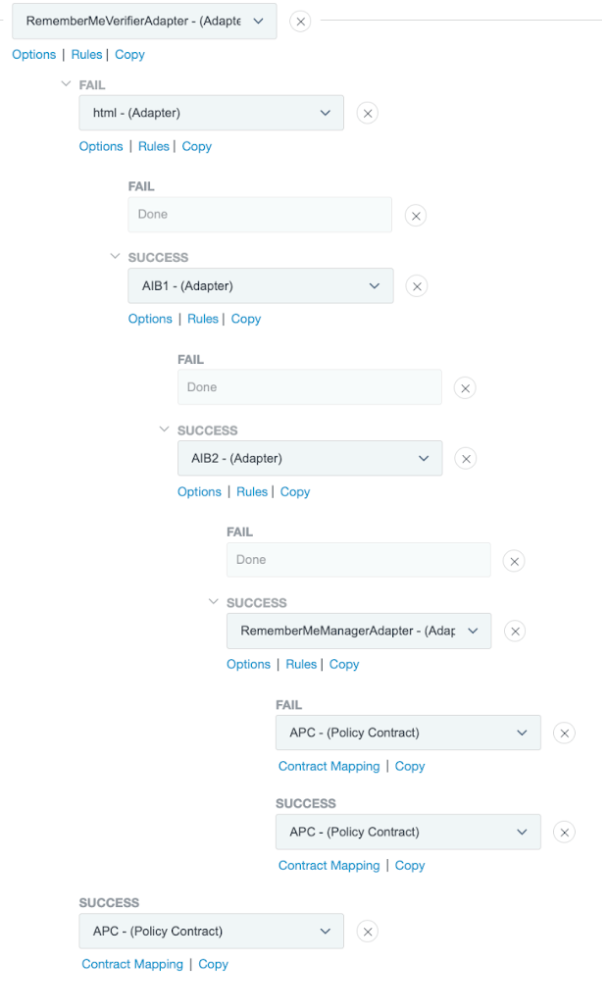
If the device is trusted, always perform 1FA, but skip MFA. This example uses the HTML Form Adapter as the first authentication factor, and the PingOne MFA IdP Adapter as the second authentication factor.
Policy structure
-
In the PingFederate admin console, go to Authentication > Policies > Policies.
-
Select the IdP Authentication Policies checkbox.
-
Open an existing authentication policy, or click Add Policy.
Learn more in Defining authentication policies in the PingFederate documentation.
-
In the Policy section, in the Select list, select an HTML Form Adapter instance.
-
Configure the authentication paths for the first authentication factor:
-
In the Success path, select a PingOne MFA Remember Me Verifier Adapter instance.
-
In the Fail path, select Done.
-
-
Configure the authenticator paths for the PingOne MFA Remember Me Verifier Adapter:
-
In the Success path, select the authentication policy contract to execute at the end of a successful MFA flow.
This step allows the user to skip 1FA and MFA if their device is trusted.
-
In the Fail path, select a PingOne MFA IdP Adapter instance.
-
-
Configure the authenticator paths for the second authentication factor:
-
In the Success path, select a PingOne MFA Remember Me Manager Adapter instance.
-
In the Fail path, select Done.
-
-
Configure the authenticator paths for the PingOne MFA Remember Me Manager Adapter:
-
In the Success path, select the authentication policy contract to execute at the end of a successful MFA flow.
-
In the Fail path, select the authentication policy contract to execute at the end of a successful MFA flow.
The failure result is the same as the success result in this step because the normal MFA flow should be followed if a device isn’t going to be remembered.
-
-
Map the username to the Remember Me Verifier and Manager adapters from previous adapters:
-
Under the PingOne MFA Remember Me Verifier Adapter instance, click Options.
-
On the Incoming User ID page, in the Source list, select the first authentication factor.
-
In the Attribute list, select username.
-
Select the User ID Authenticated checkbox.
-
Repeat step 9 for the PingOne MFA Remember Me Manager Adapter, selecting any previous adapter in the authentication flow that can pass the username value.
The PingOne MFA Remember Me Manager Adapter doesn’t work if it doesn’t get the username value from the previous adapters.
-
-
Click Done.