People Picker configuration
Steps
-
Sign on to your SharePoint Central Administration site.
-
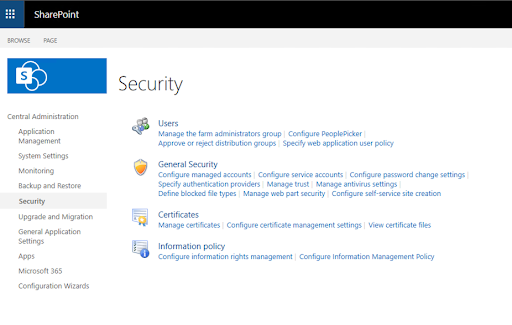
Go to Central Administration > Security.
-
Click Configure People Picker (under Users):
-
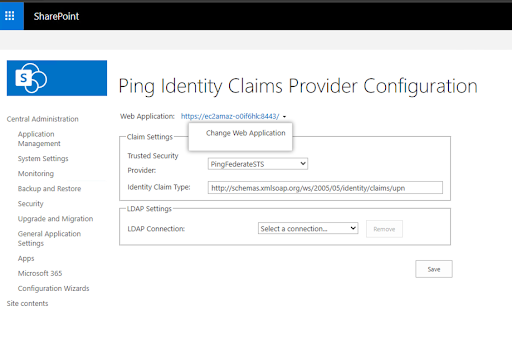
Select the web application that’s configured to use the Partner STS (Trusted Identity Provider) for authentication from the list at the top of the page):
-
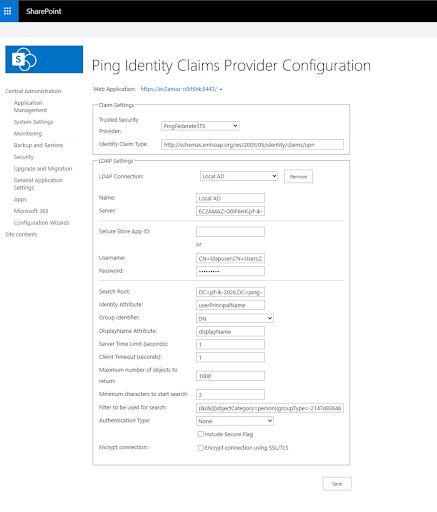
Configure the Claim Settings by selecting the Partner STS and specifying the Identity Claim Type.
- Identity Claim Type examples
-
http://schemas.xmlsoap.org/ws/2005/05/identity/claims/emailaddresshttp://schemas.xmlsoap.org/ws/2005/05/identity/claims/upn
-
Add Lightweight Directory Access Protocol (LDAP) connections by selecting Add a new connection… in the LDAP Connection list, then fill out the LDAP connection settings as described in the following table:
| Field | Description | ||
|---|---|---|---|
Name |
The name of this LDAP connection. |
||
Server |
The FQDN or IP address for the LDAP server. If using LDAPS, include the relevant port (for example, |
||
Secure Store App Id |
The ID of your saved credentials in SharePoint’s Secure Store Service. |
||
Username |
The username of the LDAP account that will be used to bind to LDAP to query users or groups. If the Username field is left blank the LDAP query will be made using the SharePoint farm account. |
||
Password |
The password for the LDAP account.
|
||
Search Root |
The root (BaseDN) for the LDAP search. |
||
Identity Attribute |
The Identity Attribute refers to the LDAP attribute used to populate the Identity Claim Type (which you selected in the Claim Settings at the top of the page). The LDAP attribute configured here must match the LDAP attribute used in PingFederate to populate that WS-Fed attribute. For example, an Identity Attribute of |
||
Group Identifier |
Select either SID or Distinguished Name (DN) to be used as the group unique identifier. |
||
DisplayName Attribute |
LDAP attribute used to display user-friendly names in People Picker, such as |
||
Server Time Limit (seconds) |
The maximum number of seconds that the server waits for a search to complete. |
||
Client Timeout (seconds) |
The maximum number of seconds that the client waits for the server to return results. |
||
Maximum number of objects to return |
This refers to the maximum number of search results you want the People Picker to return. You can set this to a number between 0 and 500. If you set this to 0, it uses the SharePoint default size limit of 1000 entries. |
||
Minimum characters to start search |
This refers to the minimum number of characters (letters) an end user must type into the People Picker search window before the search starts to execute. You can set this to a number between 4 and 10. If you set this to 0, it uses the SharePoint default setting of 3 characters.
|
||
Filter to be used for search |
Provide a custom LDAP query to be used for search. Leave this property blank to use the default query:
|
||
Authentication Type |
Specifies the authentication mechanism used when connecting to the LDAP server. This corresponds to the |
||
Include Secure Flag |
When selected, the Secure flag is applied in addition to the selected authentication type. This instructs the underlying Windows security provider to negotiate the most secure available authentication mechanism (typically Kerberos or NTLM). Enable this option when connecting over LDAPS (port 636) or when the directory server requires authenticated binds.
|
||
Encrypt Connection |
When selected, the connection to the LDAP server is encrypted using SSL/TLS by applying the SecureSocketLayer authentication flag. Use this option when the LDAP server is configured to accept SSL connections (typically on port 636). Before enabling this option, ensure that:
|