WebAuthn Authentication node
The WebAuthn Authentication node lets users on supported clients authenticate using a registered FIDO device.
What are the differences between WebAuthn and device binding/signing?
There are many similarities between WebAuthn and device binding and JWS verification. We provide authentication nodes to implement both technologies in your journeys.
Both can be used for usernameless and passwordless authentication, they both use public key cryptography, and both can be used as part of a multi-factor authentication journey.
One major difference is that with device binding, the private key never leaves the device.
With WebAuthn, there is a possibility that the private key is synchronized across client devices because of Passkey support, which may be undesirable for your organization.
For details of the differences, refer to the following table:
| Feature | WebAuthn / FIDO | Device Binding / JWS Verifier | Details |
|---|---|---|---|
Industry-standards based |
✅ |
❌ |
You can refer to the WebAuthn W3C specification. Device binding and JWS verification are proprietary implementations. |
Public key cryptography |
✅ |
✅ |
Both methods use Public key cryptography. |
Usernameless support |
✅ |
✅ |
After registration, the username can be stored in the device and obtained during authentication without the user having to enter their credentials. |
Keys are bound to the device |
❌ |
✅ |
With WebAuthn, if Passkeys are used, they can be shared across devices. With device binding, the private keys do not leave the device. |
Sign custom data |
❌ |
✅ |
With device binding, you can:
|
Format of signed data |
|||
Integration |
❌ |
✅ |
With device binding, after verification, the signed JWT is available in:
This enables the data within to be used for integration into your processes and business logic. |
Platform support |
✅ Android ✅ iOS ✅ Web browsers |
✅ Android ✅ iOS ❌ Web browsers |
As it is challenging to store secure data in a browser as a client app, device binding is not supported in web browsers. |
Authenticator support |
Determined by the platform. Configuration limited to:
|
Determined by the authentication node. Full configuration options:
|
With device binding, you can specify what authentication action the user must perform to get access to the private keys. This provides greater flexibility in your security implementation and can reduce authentication friction for your users. |
Key storage |
Web browsers and iOS synchronize to the cloud. Android has the option to synchronize to the cloud. |
|
Both technologies store the private keys securely on the client. WebAuthn supports synchronizing the private keys to the cloud for use on other devices. This can reduce authentication friction for your users but may also increase the risk of a breach. |
Managing device keys |
Managed by the device OS. Apps cannot delete local client keys programmatically and do not have a reference to the remote server key for deletion. |
Managed by the Ping SDKs. Provides an interface to delete local client and remote server keys. |
The ability to programmatically delete both client and server keys can greatly simplify the process of registering a new device if an old device is lost or stolen. |
Passkey support |
✅ |
❌ |
WebAuthn supports synchronizing the private keys to the cloud for use on other devices. Device binding keeps the private key locked in the device. |
App integrity verification |
|
Not provided by the device binding or verification nodes. It can be added as part of the journey by using app integrity nodes. |
App integrity verification helps ensure your users are only using a supported app rather than a third-party or potentially malicious version. |
Key attestation |
|
|
Key attestation verifies that the private key is valid and correct, is not forged, and was not created in an insecure manner. |
Complexity |
Medium |
Low |
WebAuthn requires a bit more configuration, for example, creating and uploading the Device binding only requires the journey and the SDK built into your app. |
Examples
Example 1: WebAuthn authentication journey
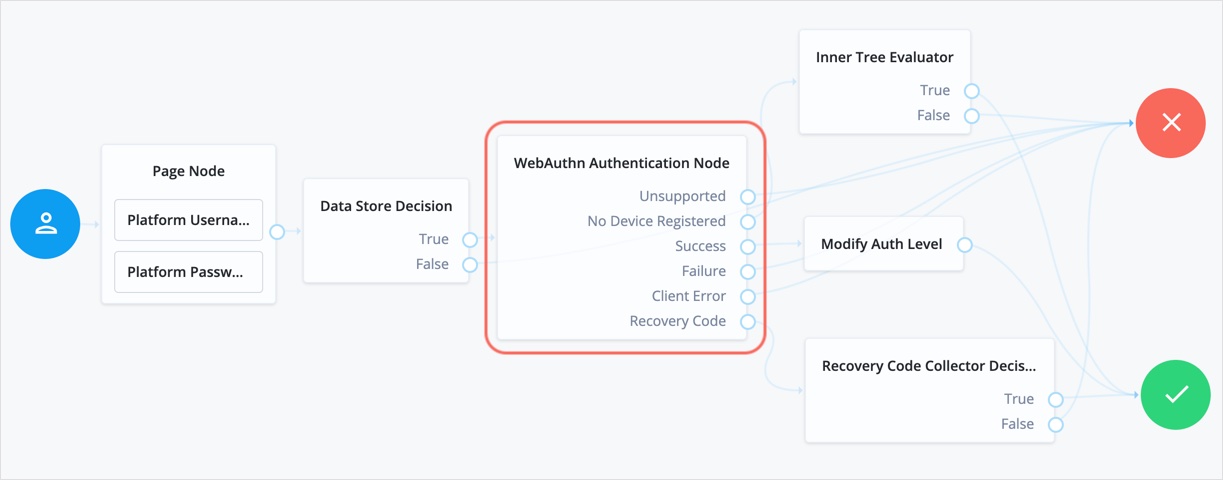
This example shows one possible implementation of the flow for authenticating with WebAuthn devices:
-
After verifying the user’s credentials against the configured data store, evaluation continues to the WebAuthn Authentication node.
-
If the user’s client doesn’t support WebAuthn, authentication fails and the user doesn’t get a session. A more user-friendly approach would be to set a success URL to redirect the user to a page explaining the benefits of multi-factor authentication, and then proceeding to the
Successnode. -
If the user profile has no registered WebAuthn devices, the journey continues to the generic failure outcome.
This prevents the risk of username enumeration by ensuring that a response for a missing device is indistinguishable from a failed authentication. -
If the user’s client supports WebAuthn, and the connection is secured with TLS, the user is prompted to complete an authorization gesture, for example, scanning a fingerprint, or entering a PIN:
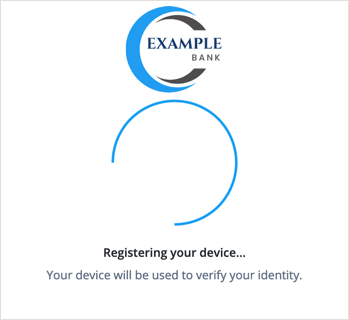
The user’s browser may present a consent pop-up to allow access to the authenticators available on the client. When consent has been granted, the browser activates the relevant authenticators, ready for authentication.
The relying party details configured in the node are often included in the consent message to help the user verify the entity requesting access.
The authenticators the client activates for authentication depend on the value of the properties in the node. For example, if the User verification requirement property is set to
REQUIRED, the client SHOULD only activate authenticators that verify the identity of the user.For extra protection, Advanced Identity Cloud WILL verify that the response from an authenticator matches the criteria configured for the node, and will reject an authentication attempt by an inappropriate authenticator type by routing it to the
Failureoutcome. -
When the user completes an authorization gesture, for example, by scanning a fingerprint or entering a PIN, evaluation continues along the
Successoutcome path.In this example, their authentication level is increased by ten to signify the stronger authentication that has occurred, and the user is taken to their profile page.
-
If the user clicks the
Use Recovery Codebutton, evaluation continues to the Recovery Code Collector Decision node, ready to accept the recovery code. If verified, the user is taken to their profile page. -
Any problems encountered during authentication lead to the
Failure,Client Error, orSign Count Mismatchoutcomes, resulting in an authentication failure.
Example 2: WebAuthn authentication with conditional UI
The following example journey lets the user authenticate using social authentication, a username and password, or a passkey:
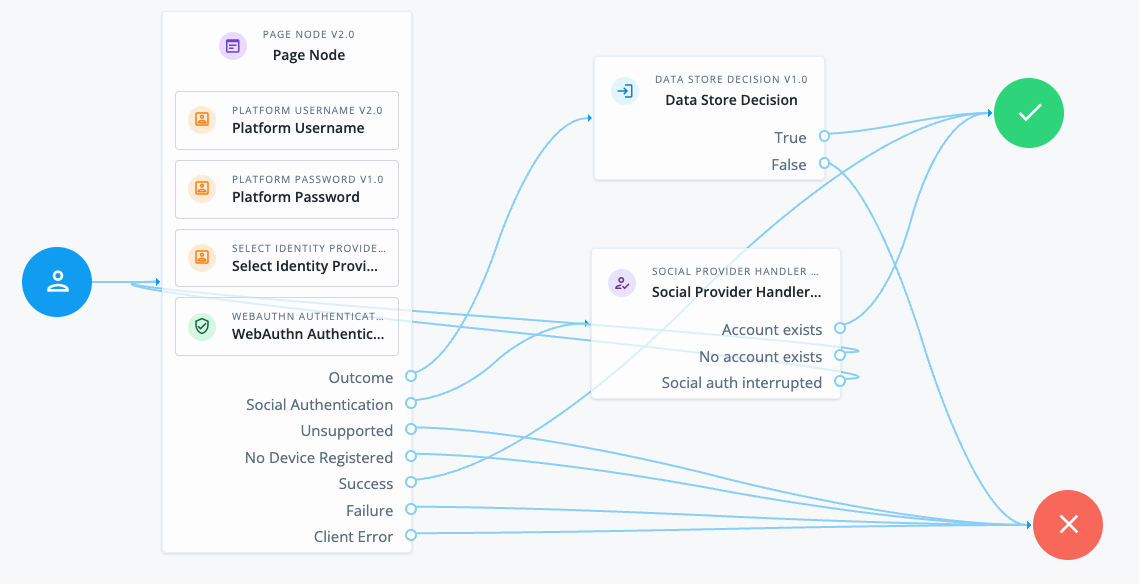
The v2.0 Page node provides the user with different authentication options on the same page.
The Page node contains the following nodes:
-
Platform Username node. This node uses the following configuration to provide users with relevant autofill suggestions, including passkeys if they’re available:
- Autocomplete Values
-
username
webauthn
The autocomplete values must be in this order.
-
Select Identity Provider node. This node is configured to include local authentication.
-
WebAuthn Authentication node. This node is v2.0 and uses the following configuration to provide the WebAuthn conditional UI and Sign in with passkey button:
- Username from device
-
Enabled - Mediation
-
CONDITIONAL - Authentication Button
-
Enabled
The standalone nodes must be added after the non-standalone nodes.
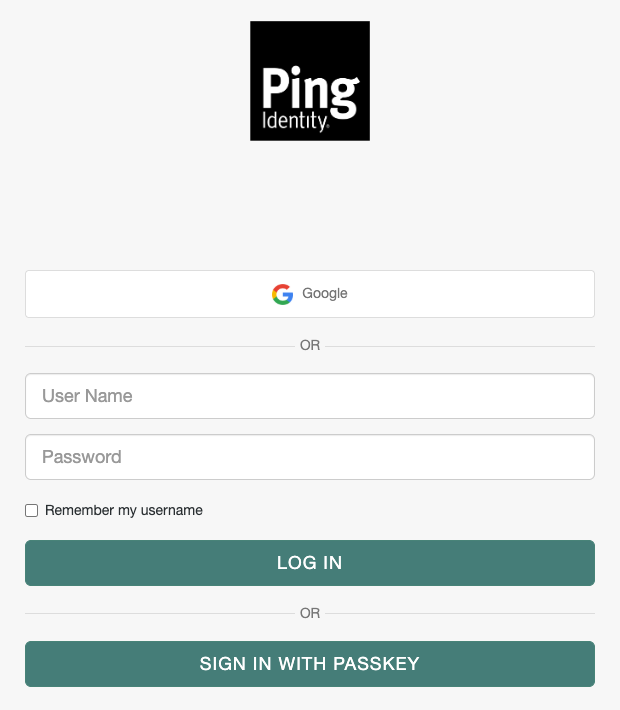
This Page node configuration presents a Sign in page to the user similar to the following:
-
If the user chooses Google in this example, the Social Provider Handler node routes the user to Google to authenticate. If authentication is successful, the user follows the
Account existspath. Otherwise, they can try a different authentication method. -
If the user clicks in the User Name field, they are shown any relevant username and passkey autofill suggestions.
-
If they select a passkey and authenticate successfully, they follow the
Successpath. -
If they enter their username and password (local authentication), they follow the
Outcomepath to the Data Store Decision node. This node validates their credentials and authenticates the user if they’re valid.
-
-
If they click the Sign in with a passkey button, they can select a saved passkey to authenticate with. If authentication is successful, they follow the
Successpath.
Availability
| Product | Available? |
|---|---|
PingOne Advanced Identity Cloud |
Yes |
PingAM (self-managed) |
Yes |
Ping Advanced Identity Software (self-managed) |
Yes |
Inputs
-
This node requires a
usernamein the incoming node state to assess whether the user has a registered device.Implement a Platform Username node earlier in the journey.
-
Optionally, this node can read the contents of the
webAuthnExtensionsshared state property as input.You can populate the
webAuthnExtensionsproperty with any JSON object you choose using a script or in a node that occurs earlier in the journey. If this property is populated, its contents are placed in theextensionsentry passed to the browser or authenticator. If this property is empty, an empty JSON object is passed to the browser or authenticator.You can find more information on WebAuthn extensions in WebAuthn Extensions.
Dependencies
For successful authentication, this node depends on:
-
A client that supports web authentication
-
A registered FIDO device
To support passkey autofill, you must place this node in a v2.0 Page node and configure the journey with WebAuthn conditional UI. Learn more in Configure WebAuthn conditional UI.
Configuration
| Property | Usage | Availability |
|---|---|---|
Relying party identifier |
The domain used as the relying party identifier during web authentication. This is the domain against which to register the device. If you leave this field blank, it defaults to the domain name of your tenant, for example, |
All node versions |
Origin domains |
A list of fully qualified URLs to accept as the origin of the incoming request. If this field is empty, the accepted origin is the incoming request origin. |
All node versions |
User verification requirement |
The required user verification level. The available options are:
|
All node versions |
Allow recovery codes |
If you select this option, Advanced Identity Cloud lets the user enter a recovery code instead of performing an authentication gesture. Enabling this options adds a |
All node versions |
Timeout |
The number of seconds to wait for a valid WebAuthn authenticator to be registered before failing. If the specified timeout is reached, evaluation continues along the |
All node versions |
Username from device |
Whether Advanced Identity Cloud should get the username from the device. If you enable this option and the device is unable to store or provide usernames,
the node fails and evaluation continues along the You must enable this option for WebAuthn conditional UI and usernameless authentication. |
All node versions |
Return challenge as JavaScript (Legacy) |
This is a legacy option. You should make sure it’s deselected. When not enabled, the node returns the challenge and associated data in a metadata callback. Advanced Identity Cloud uses the information from the callback to interact with WebAuthn APIs on its behalf. |
|
Detect sign count mismatch |
The sign count is useful for detecting potential cloned devices. It’s stored in the WebAuthn device profile as If you enable this option, the node compares the authenticator’s sign count (signature counter) with the sign count stored in the user’s profile. If the authenticator sign count is less than or equal to the stored value, evaluation continues to the Sign Count Mismatch outcome. |
All node versions |
Mediation |
The mediation used by the browser, which determines how the browser handles WebAuthn. The available options are:
Learn more in Configure WebAuthn conditional UI. |
|
Authentication Button |
This option only applies if Mediation is set to |
Outputs
-
If a client error occurs, the node adds the error type and description to a property named
WebAuthenticationDOMExceptionin the shared state. Other nodes can read this property later in the journey, if required. -
On successful authentication, the node adds the UUID of the device (
webauthnDeviceUuid) and the name of the device (webauthnDeviceName) to the shared state.This lets you track the use of biometric authentication and the device used to authenticate.
-
On successful authentication, the node adds a
webauthnAssertionInfoobject to the transient state.The
webauthnAssertionInfoobject includes the following information:{ "authenticatorAttachment": "platform", "flags": { "UP": true, "UV": true, "ED": false, "AT": false, "BE": true, "BS": true } }The
authenticatorAttachmentfield is only populated when the UI or client application supports sending it. This field lets the journey identify whether the device used to authenticate was a roaming (cross-platform) device or a client-bound (platform) device. Learn more in Authenticator Attachment Modality in the WebAuthn specification.The
flagsprovide additional information about the authenticator. Learn more about these flags in Authenticator Data in the WebAuthn specification.-
With the exception of the
webauthnAssertionInfoobject, the contents of the transient state for this node aren’t public. Don’t rely on them in your scripts.
-
Callbacks
The node sends the following callbacks:
ConfirmationCallback-
Lets the user choose to provide a recovery code rather than authenticate using a device.
HiddenValueCallback-
Contains a placeholder when initially sent but when the client sends it back, it contains the WebAuthn result payload.
MetadataCallback-
Contains the challenge and associated data.
Example
MetadataCallbackThe following example shows a
MetadataCallbackwhere the WebAuthn conditional UI is enabled with a Sign in with a passkey button:{ "type": "MetadataCallback", "output": [ { "name": "data", "value": { "_action": "webauthn_authentication", "_type": "WebAuthn", "supportsJsonResponse": true, "challenge": "8Kx0tYt5tFZ7t7aO5T5x2w==", "allowCredentials": [], "_allowCredentials": [], "timeout": "60000", "userVerification": "preferred", "conditional": true, "mediation": "conditional", "manualButtonEnabled": true, "allowRecoveryCode": "false", "relyingPartyId": "rpId: \"example.com\",", "_relyingPartyId": "example.com", "extensions": {} } } ] }In v1.0 of the node, the
MetadataCallbackis only sent with the challenge and associated data when Return challenge as JavaScript is not selected. ScriptTextOutputCallback-
This callback is only sent in v1.0 of the node.
Contains the challenge and associated data as embedded JavaScript (
scriptContext) that can interact directly with the WebAuthn API if Return challenge as JavaScript is selected.The information included in the
scriptContextis the same as what’s included in theMetadataCallbackbut formatted as JavaScript.
Learn more in Supported callbacks.
Outcomes
Unsupported-
If the user’s client doesn’t support web authentication, evaluation continues along the
Unsupportedoutcome path. For example, clients connected over the HTTP protocol rather than HTTPS don’t support WebAuthn; however, HTTPS may not be required when testing locally onhttp://localhost. Learn more in Is origin potentially trustworthy?. No Device Registered-
If the user doesn’t have a registered device, evaluation continues along the
No Device Registeredoutcome path.- User enumeration risk
-
When WebAuthn is the only authentication method, routing the
No Device Registeredoutcome to a visually distinct path, such as password login or device registration, allows attackers to identify valid usernames.When the node processes the request, it performs a username-to-device lookup before issuing any WebAuthn challenge or triggering any browser interaction. This means that a difference in response reveals whether a passkey exists for the user.
This risk is noted in §14.6.2 of the W3C WebAuthn Level 2 specification.
- Mitigation
-
Design your journey to route
No Device Registeredto the same generic failure handling as theFailureoutcome. This ensures the UI, response, and timing of the journey all remain indistinguishable to an attacker.
Success-
If the user successfully authenticates with a device of the type determined by the User verification requirement property, evaluation continues along the
Successoutcome path. Failure-
If the node encounters an issue when attempting to authenticate the user with the device, evaluation continues along the
Failureoutcome path; for example, if the node can’t verify that the response from the authenticator was appropriate for the specific instance of the authentication journey. Client Error-
If the user’s client encounters an issue when attempting to authenticate using the device, for example, if the timeout was reached, evaluation continues along the
Client Erroroutcome path.The journey takes this path whenever the client throws a
DOMException, as required by the Web Authentication: An API for accessing Public Key Credentials Level 1 specification. Recovery Code-
If Allow recovery code is enabled, the node gives the user an option to enter a recovery code rather than authenticate using a device. If the user enters a recovery code, evaluation continues along the
Recovery Codeoutcome path.This outcome path must lead to a Recovery Code Collector Decision node to let Advanced Identity Cloud accept and verify the recovery code.
Sign Count Mismatch-
If Detect sign count mismatch is enabled and the authenticator sign count is less than or equal to the value stored in the user’s profile, evaluation continues to the Sign Count Mismatch outcome.
This outcome can help to detect cloned or malfunctioning authenticators. A sign count mismatch doesn’t necessarily indicate that the operation was performed by a cloned authenticator. Address this situation appropriately for your deployment, for example, by using a scripted decision node.
The node itself is considered to have succeeded even if evaluation leads to this outcome. Therefore, if it suits your deployment, you can design your journey to continue through this outcome.