Customizing the PingID mobile app home screen
Customize the home screen of the PingID mobile app to make your corporate logo an integral part of your end users' authentication experience.
Steps
|
In PingID mobile app 2.0 and later, the branding configured under PingID Home is applied to the My Organizations screen. The logo from this section is only used if a corporate logo isn’t defined on the Enrollment page. |
-
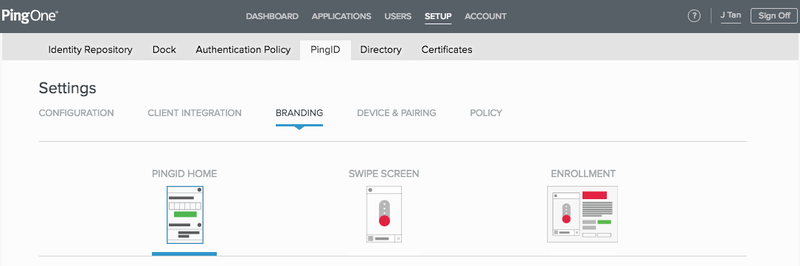
Go to Setup > PingID > Branding > PingID Home.
-
In the Organization Logo Icon section, click Select File and go to the image you want to use.
Click Preview Full Size to view the proposed changes.
The icon can be a JPEG, JPG, GIF, or PNG file with a maximum size of 1MB.
Result:
The selected image opens in the My Organizations section of the PingID mobile app home screen, next to your Company Name.
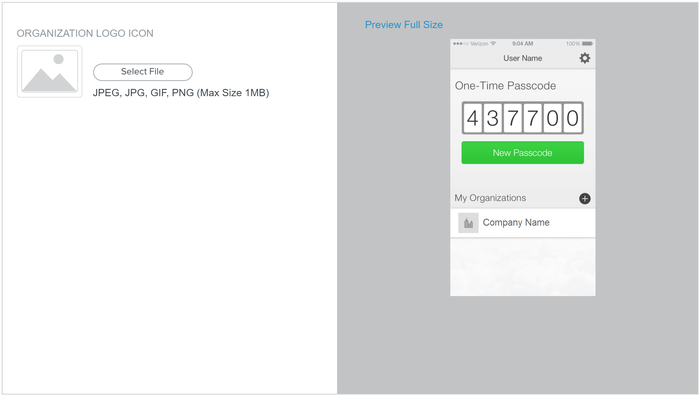
Click Remove to restore the original PingID default setting.
Click Save.
|
Clicking Discard Changes in the PingID Home, Swipe Screen, or Enrollment windows discards any changes made in all of the windows since the last save. |