Generating a KDC certificate
If your Key Distribution Center (KDC) doesn’t already have a certificate, you must generate one.
Before you begin
Check whether you already have a KDC certificate installed on your Active Directory Domain Controllers. You don’t need to generate a certificate if you already have one. Repeat the lookup command for each Active Directory domain in your environment.
The KDC certificate is used as part of the Kerberos PKINIT mutual authentication mechanism.
Steps
-
Create an .inf file containing the following information:
[newrequest]
        subject = "CN=<hostname>"
        KeyLength = 2048
        MachineKeySet = TRUE
        Exportable = FALSE
        RequestType = PKCS10
        SuppressDefaults = TRUE
        [Extensions]
        ;Note 2.5.29.17 is the OID for a SAN extension.
        2.5.29.17 = "{text}"
        _continue_ = "dns=<DNS hostname>"
In the example above, replace <hostname> and <DNS hostname> with the FQDN of the domain controller server, for example, servername.example.com. For more information on the contents of
.inffiles for thecertreqcommand, learn more in the certreq documentation. -
Generate a certificate signing request from your KDC server by running the command:
certreq -new ‘`<path to the .inf file>[.codeph]`’ 'kdc.req' -
In the PingOne admin console, go to Applications > Applications., and open the application that you created for passwordless Windows login.
-
Click the Configuration tab.
-
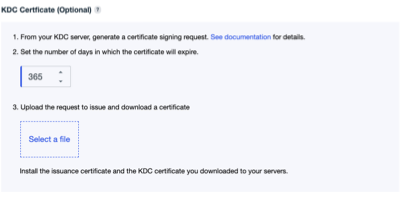
Scroll down to the KDC Certificate area in the Certificate-based authentication section.
-
For the KDC certificate signing request that you created earlier with the
certreqcommand:-
Set the number of days until the certificate should expire.
-
Click the Upload request and Issue Certificate button to have the certificate issued.
The KDC certificate doesn’t need to be signed by the issuance certificate that you created with PingOne. Any valid certification path is acceptable.
-
-
Install the KDC certificate on your server:
certreq -accept -machine
-f
<KDC certificate filename>You must install the KDC certificate on each Active Directory Domain Controller that’s used to authenticate users with Windows Login - Passwordless.