Troubleshoot the PingID integration for Windows login
The following sections describe common issues that administrators or end users might encounter and their solutions.
Installation completed successfully, but users are unable to access the Windows machine using PingID MFA
|
An open admin session is required to investigate or recover from this scenario. |
- If an admin session is open
-
-
Analyze the registry values in
HKEY_LOCAL_MACHINE\SOFTWARE\Ping Identity\PingId\PingIdCredProvto verify that the correct settings have been defined. Learn more in the parameter table in the topic Installing the PingID integration for Windows login using CLI.The three OrgData fields are encrypted and shouldn’t be edited.
Verify that the URL entry matches the PingID authenticator for your geography.
-
Analyze the installation log file and confirm that the parameter values entered are correct. If necessary, forward the log file to PingID support.
The installation log file is located in the admin installation user’s
TEMPdirectory, unless the CLI option /LOG was used to create it in a different location. -
Optionally, change registry settings temporarily to suspend PingID MFA for local or remote users.
-
Optionally, uninstall PingID from the machine and attempt the installation again. Then, check the results.
- If there are no open admin sessions, ensure that one of the following options can be used to open an admin session and then continue with the previous steps ("If an admin session is open").
-
If the installation was configured for PingID authentication for remote logins only, then sign on locally as administrator to bypass PingID authentication.
-
If the installation was configured for PingID authentication for local logins only, then sign on remotely as administrator to bypass PingID authentication.
-
If the installation was configured to bypass PingID authentication when there’s no Internet connection available at the time of sign on, then disconnect the machine from the network to permit signing on.
-
If none of these scenarios permit you to open an admin session, restart the machine in Windows Safe Mode and sign on as an administrator.
-
If the installation was completed but the machine wasn’t restarted yet, a restart might be required.
A blank screen opens and users can’t sign on after installing the PingID integration for Windows login
A blank screen with no option to sign on is often caused by a conflict with an incompatible third-party Windows credential provider. A credential provider is a Windows component that supplies sign-on information. PingID for Windows login isn’t compatible with most third-party providers.
To prevent this issue:
|
-
Access the Windows registry either using:
-
Safe Mode: Boot the machine in Windows Safe Mode, sign on using an administrator account, then open the Registry Editor (
regedit.exe). -
Remote connection: Connect to the machine remotely and open the Registry Editor as an administrator.
-
-
Check for third-party credential providers in the Registry Editor in
HKEY_LOCAL_MACHINE\SOFTWARE\Microsoft\Windows\CurrentVersion\Authentication\Credential Provider Filters\. -
If third-party credentials are present, uninstall PingID for Windows login, then remove any providers besides the Windows credential provider.
-
Reinstall the PingID integration for Windows login.
Learn more about how to install and uninstall PingID for Windows login in Installing the PingID integration for Windows login and Uninstalling the PingID integration for Windows login.
Admin console: Users by Service has duplicate entries for the same user
Go to Users > Users by Service. In the Users by Service section, there appear to be duplicate rows for some users.
This is the result of different values for the username of the PingID account compared with the username value in the Windows Security Account Manager (SAM). For example, an existing user of other PingID services, johndoe, starts to use PingID integration for Windows login to access a Windows server, where his username is johndoe@somewhere.com. Although this is the same user, PingID regards them as two different users, resulting in two entries in the Users by Service table.
Files not removed when installation was canceled
There can be scenarios where files weren’t removed after the installation is canceled. These situations depend on the state of progress the installation reached at the time that it was canceled, and they’re more prevalent when the CLI is used and interrupted in the middle of the installation.
To remove the files, you should first attempt to uninstall the PingID integration for Windows login according to the uninstall instructions page. Learn more in Uninstall the PingID integration for Windows login.
If the uninstall procedure does not succeed, go to the installation directory, default C:\Program Files\Ping Identity\PingID\WindowsLogin, or other destination if the default was changed during installation, and manually remove the files.
Installation fails on message "Can’t establish a PingID connection. Verify your configuration and Internet connection."
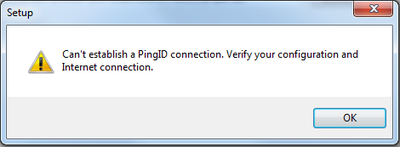
This error message indicates that the Windows machine being configured for PingID integration with Windows login is unable to connect to the PingID server. Ensure the following when troubleshooting:
-
The Windows machine must have a working Internet connection.
-
Verify that the authenticator URL matches the entry in your organization’s
pingid.propertiesfile. -
If a proxy address and credentials are required, verify the values entered.
Learn more in Installing the PingID integration for Windows login.