Installing passwordless Windows Login integration on client computers
You can install the integration for passwordless Windows login on your users' computers with the command-line interface (CLI) that’s provided or with the UI-based installation.
Requirements
-
To use the passwordless Windows login feature, users' computers must be running Windows 10 (64-bit) or Windows 11, and must support TPM 2.0.
If you’ve set the Resident Key option to Required for FIDO2 security keys, users don’t require TPM on their computer in order to use the passwordless login, provided that they paired their keys after the setting was changed to Required. Learn more about the Resident Key option, in (Legacy) Configuring the FIDO2 security key for PingID. Because TPM 2.0 provides a higher degree of security, the passwordless login for Windows will always use TPM for storage if the relevant computer has the necessary support.
-
The first time a user carries out passwordless Windows login, they must be online and connected to the organizational network, as certificate enrollment requires a connection to Active Directory. After the first time, there’s no need for a connection to the network, and authentication can be carried out online or offline for as long as the certificate is valid.
-
UI-based installation
-
Command-line installation
Installing passwordless Windows Login integration on client computers (UI)
You can install the integration for passwordless Windows Login on your users' computers with the UI-based installation described in this topic.
Steps
-
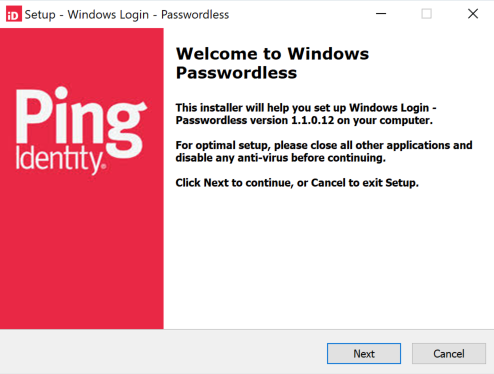
Run the provided executable, and when the welcome screen is displayed, click Next.
-
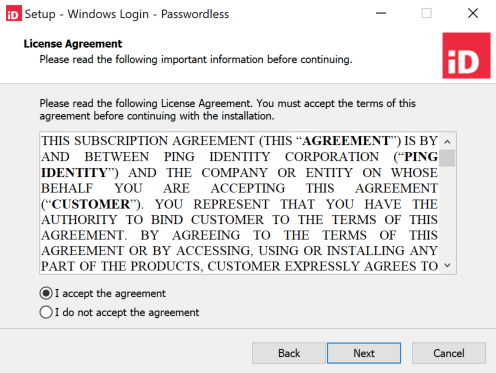
Accept the license agreement and click Next.
-
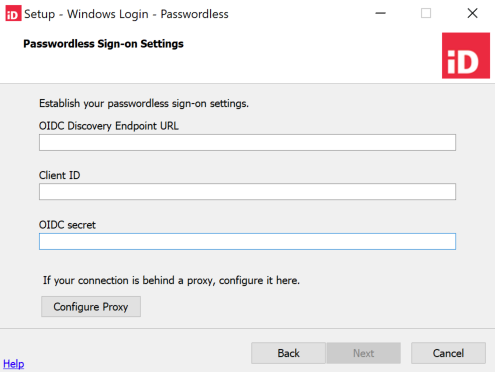
Enter the Passwordless Sign-on Settings:
-
Enter the OIDC Discovery Endpoint URL, Client ID, and the OIDC Secret.
-
You can get these values from the Configuration tab in the application you created for Windows Login - Passwordless. Learn more in Creating and configuring a passwordless Windows login application in PingOne
-
The OIDC Discovery Endpoint URL and Client ID can’t be edited during an upgrade.
-
-
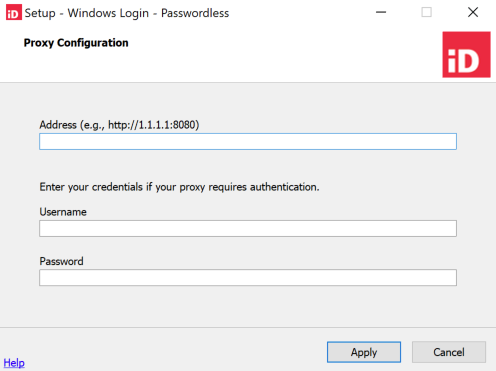
If your organization uses a proxy, click Configure Proxy. Otherwise, click Next.
-
-
If you clicked Configure Proxy in the previous step, enter the proxy information, click Apply, and when you are returned to the Passwordless Sign-on Settings screen, click Next.
-
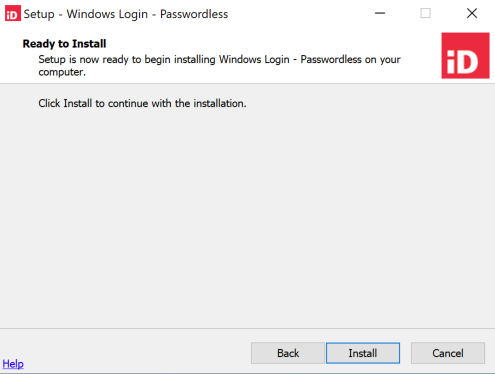
When the Ready to Install screen is displayed, click Install to start the installation.
Installing passwordless Windows Login integration on client computers (CLI)
You can use the CLI-based installation described in this topic to install the integration for passwordless Windows login on your users' computers.
Mandatory parameters
You can use the properties file to provide the mandatory parameters, or specify each parameter individually.
|
Use either the properties file or include the mandatory parameters. If you use both the installation will fail. |
Provide mandatory parameters with a properties file
-
/orgSettingsFilePath: the path to the passwordless Windows login application properties file that includes the mandatory parameters.The properties file format is as follows:
base_url=https:<base_url>
client_id=<clientid>
client_secret=<client secret>
environment_id=<environment id>
-
The
base_urlis set according to your PingOne environment’s region (for example, North America: https://auth.pingone.com, Europe: https://auth.pingone.eu). -
Download the properties file from the Configuration tab of the application you created for Windows Login - Passwordless. Learn more in Creating and configuring a passwordless Windows login application in PingOne.
-
Manually provide mandatory parameters
To install the mandatory parameters without using the properties file, include the following parameters:
-
/OIDCDiscoveryEndpoint: The OIDC discovery endpoint, from the URL section of the Configuration tab. -
/OIDCClientID: The client ID, from the General section of the Configuration tab. -
/OIDCSecret: The client secret from the General section of the Configuration tab. Click the Show Secret icon, and then copy the text displayed.
Optional parameters
-
/DIR: The path where the software should be installed. If this parameter isn’t specified, it’s installed toC:\Program Files\Ping Identity\PingID\Windows Passwordless. -
/LOG: Specify a path if you want a log file to be created for the installation.From PingID integration for Windows login passwordless 1.8 and later, you need administrative privileges to view log files.
-
/VERYSILENT: Neither the background window nor the installation progress window are displayed -
/SILENT: The background window isn’t displayed, but the installation progress window is displayed. -
/ProxyAddress: Proxy URI, if you’re using a proxy. -
/ProxyUserName: Username if you’re using a proxy. -
/ProxyPassword: Password if you’re using a proxy. -
/HttpRequestTimeout: Timeout to use for HTTP requests, in milliseconds - can be between 1000 and 30000, default is 10000 milliseconds. -
/NORESTART: Prevents installer from restarting the system following a successful installation.Windows Login - Passwordless won’t work until after the computer is rebooted. -
/RSA_PADDING: Use the valueoaepto specify that OAEP padding should be used in the encryption for offline authentication (default). If you don’t want to use OAEP padding for offline authentication, use the valuenone. -
/ALG_KEY_TYPE: Set the registry key algorithm type. Possible values:-
0 = RSA
-
1 = ECC
-
-
/AllowInsecureDiscouragedUV: Skip user verification for Windows login passwordless users when using any FIDO device. Possible values:-
0 = Disabled
-
1 = Enabled
Use this option with caution, as it relies solely on the FIDO device to authenticate, and doesn’t distinguish between different users.
-
-
/SUPPORT_CAMERA_LAUNCHER: When enabled, the user can scan the manual authentication QR code from their device camera. When the user scans the manual authentication QR code with their device camera, PingID mobile app opens automatically, displaying the manual authentication key. This option requires PingID mobile app 2.3 or later. Possible values:-
0 = Disabled
-
1 = Enabled
-
-
/PromptScenarioMode: Controls whether passwordless Windows login uses only configuredSetUsageScenarioauthentication scenarios or all available prompt flows during universal naming convention (UNC) path authentication. Possible values:-
0 = Configured scenarios only (default)
-
1 = All scenarios
-
Sample installation command using the properties file
"PingIDWindowsLogin - Passwordless_1.0.0.0.exe"
					/LOG=C:\Users\user\Desktop\log.txt /VERYSILENT
					/ProxyAddress=http://1.1.1.1:8080/ /ProxyUserName=
<username> /ProxyPassword=<password>/HttpRequestTimeout=5000/orgSettingsFilePath=C:\pwdlessInstaller\pwdless.txt
Sample installation command using the mandatory parameters
"PingIDWindowsLogin - Passwordless_1.0.0.0.exe"
/LOG=C:\Users\user\Desktop\log.txt /VERYSILENT
/ProxyAddress=http://1.1.1.1:8080/ /ProxyUserName=
<username> /ProxyPassword=<password>/HttpRequestTimeout=5000 /OIDCDiscoveryEndpoint=https://auth-test.pingone.com/71ab9623-dd25-4eaf-8a72-597ee70532b1/as/.well-known/openid-configuration /OIDCClientID=17fbc3dc-aa45-6854-9a82-761d906cbcff /OIDCSecret=<secret>``