Configuring SMS and voice authentication for PingID
You can enable SMS or voice authentication with PingID.
Steps
-
In the admin console, go to Setup > PingID > Configuration.
-
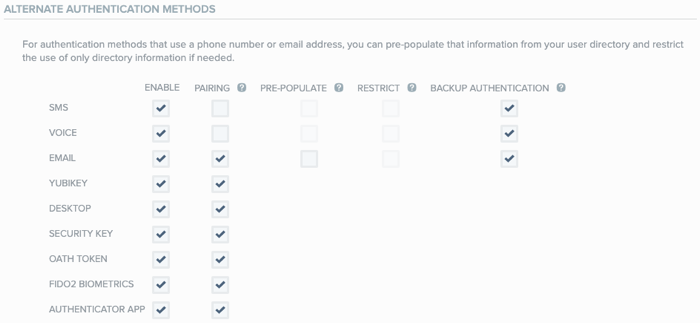
In the Authentication section, go to Alternate Authentication Methods.
-
Select the authentication methods you want to enable.
Option Steps SMS
In the SMS row, select the Enable checkbox.
Voice
In the Voice row, select the Enable checkbox.
-
Configure SMS and voice authentication according to the following table.
Option Steps Pre-populate the user’s field with the SMS or voice numbers stored in your user directory when registering for PingID.
In the relevant row, select the Pre-Populate check box. Learn more in Pre-populating or restricting user registration data.
Restrict the user to select only the SMS or voice phone numbers stored in your user directory when registering with PingID.
In the relevant row, select the Restrict check box. Learn more in Pre-populating or restricting user registration data.
Enable the SMS or voice entries stored in your user directory to be used as a backup authentication method.
In the relevant row, select the Backup Authentication check box. Learn more in Configuring backup authentication methods.
You can enable SMS or voice for backup authentication even if the SMS or Voice checkboxes aren’t selected.
Change the daily limit for SMS/voice messages.
-
In the Daily Used SMS/Voice Limit field, enter the maximum number of SMS authentication requests the user can receive and respond to per day. Enter a number between 1 and 50. The default value is 15.
-
In the Daily Unused SMS/Voice Limit field, enter the maximum number of SMS authentication requests the user can receive and not respond to per day. Enter a number between 1 and 50. The default value is 10.
-
If you want to also place a limit on the number of SMS-based and voice-based pairing requests for a user, select theEnforce for pairing requests option. When you enable this option, the number of pairing requests is added to the number of authentication requests and the total cannot exceed the limits that you set.
Localize voice calls to the language defined by the user’s browser.
In the Local Language For Voice Calls section, select Enable. If Disable is selected, or the user’s browser settings use a language isn’t one of the supported languages, English is selected by default.
This section is only applicable when the Voice check box is selected.
Learn more about supported languages in Enabling language localization for voice authentication.
-
-
Click Save.