Access graph
The access graph provides a read-only view of a user’s access at any time. Use it to understand what a user can do before approving or revoking access in a certification campaign (a scheduled review where you assess access rights).
|
The access graph is a feature of the Identity Governance add-on capability for Advanced Identity Cloud. |
View user access
-
In the Advanced Identity Cloud admin console, go to Identities > Manage.
-
Search for and select a user.
-
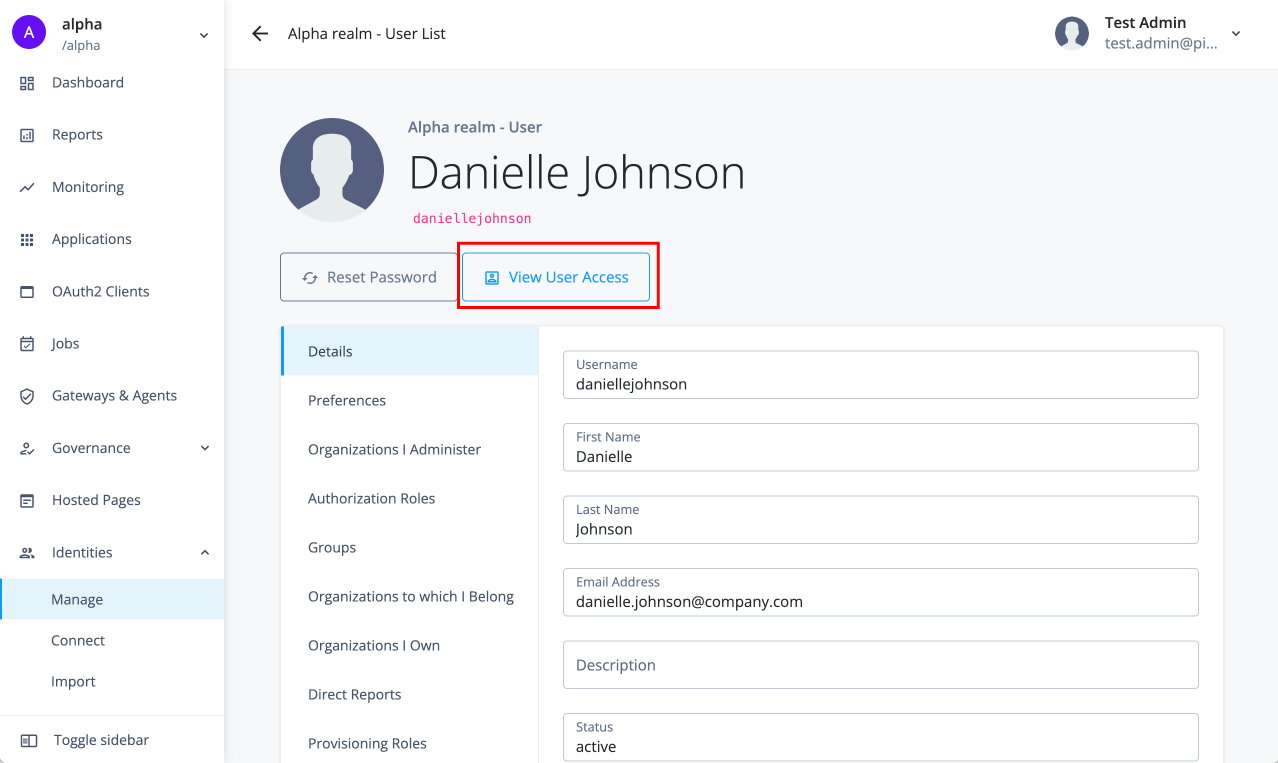
On the user’s Details tab, click View User Access.
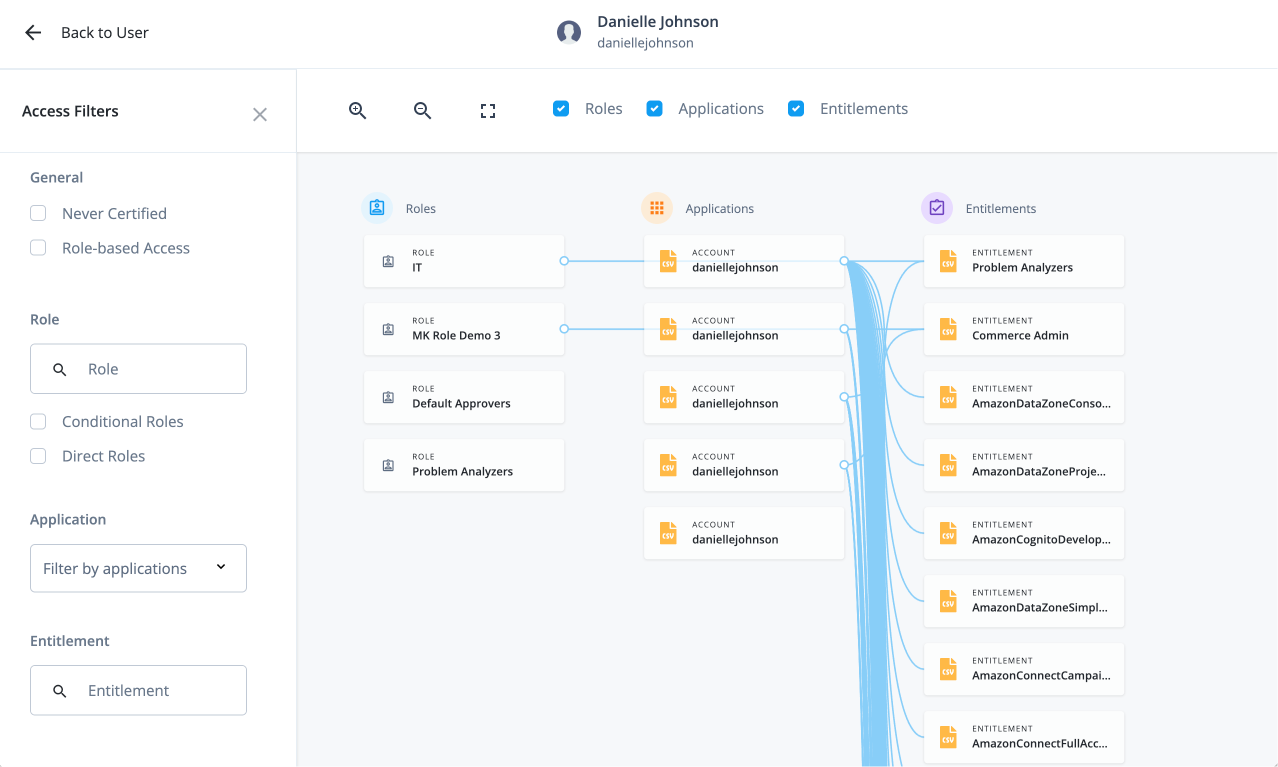
The access graph opens, showing the user’s connections to their roles, applications, and entitlements.
Access graph filters and details
After the access graph opens, use the sidebar to narrow the view and click items in the graph to explore their details:
-
By access type: Roles, applications, or entitlements.
-
By certification status: Filter the graph by whether items have been reviewed in a certification campaign. Certified items have been reviewed and approved. Uncertified items haven’t yet been reviewed.
-
By role type: Direct roles (assigned explicitly to the user) or conditional roles (assigned based on criteria such as group membership).
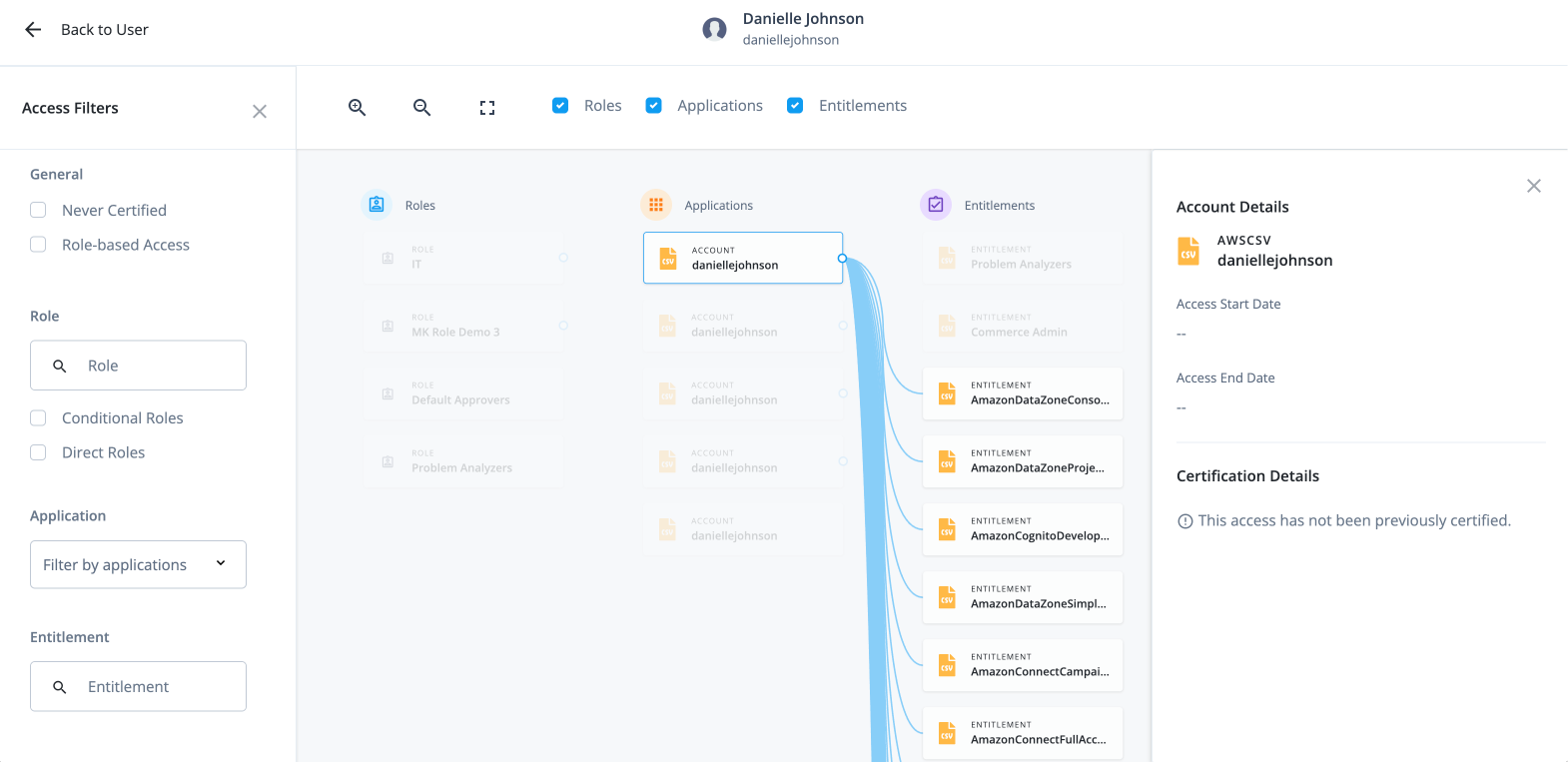
When you click a role, application, or entitlement on the graph, its details appear in the right pane.
For example, clicking an account under Application expands the graph to show the account’s entitlements as connected items, and the account details appear in the right pane.